> ## Documentation Index
> Fetch the complete documentation index at: https://docs.usefini.com/llms.txt
> Use this file to discover all available pages before exploring further.
# Help Center
> Deploy an AI-native help center backed by the same knowledge graph that powers your agent, with built-in AI search and an optional embedded chat widget.
Help Center is a hosted, public help site Fini generates from your knowledge graph. Customers land on a branded page, search in plain language, and read articles; if you attach a [widget](/en/deploy/widget), they can also chat with the same agent for questions the docs can't answer. Everything on the site comes from [Articles](/en/knowledge/articles), so running a help center is part of maintaining the knowledge your agent already uses.
 The help center is a deployment surface for Articles, your one source of truth. Every folder and article you mark **Public in helpcenter** appears on the public site automatically, and everything else stays internal. Fini's AI Knowledge Manager keeps the content current by detecting gaps and conflicts from every conversation and drafting updates into [Review](/en/knowledge/review), so the help center improves as your support runs.
This page walks through the help center in the order you'll meet it: what customers see, where the content comes from, how to set it up and curate it, and how to measure whether it's working.
## What your customers see
Three surfaces make up the public experience: the landing page, the article pages, and, if you attach one, the embedded chat widget.
### The landing page
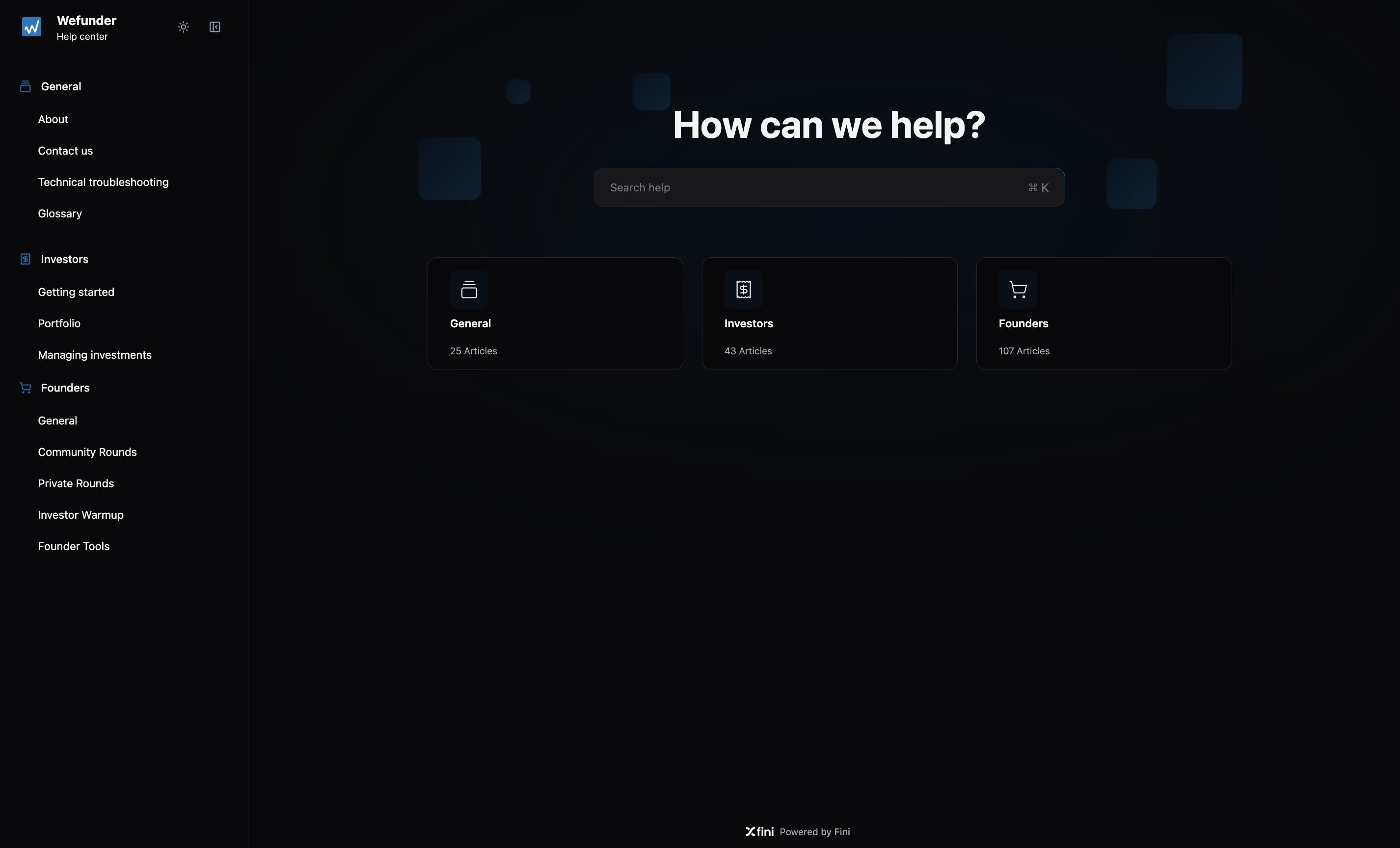
The landing page is built from your published Articles tree. The top-level folders you publish become the category cards, each with its article count, and the nested folder tree becomes the left-hand navigation. The structure you build in Articles is the structure customers see.
Two curation controls shape the page beyond the raw tree: featured articles are pinned near the top, and popular folders are highlighted as shortcuts. Both are set from Articles, see [Curate the landing page](#curate-the-landing-page).
An AI-powered search bar sits front and center, with a `⌘K` or `Ctrl K` keyboard shortcut. Customers type a question in natural language and get a list of matching articles, which handles the long tail of self-serve questions that don't need a human or customer-specific context.
The site ships with a glass-styled design, a persistent **Topics** panel, a floating pill navigation with **Search** and **Contact us**, translucent cards over a soft dark or light background, and a theme toggle so customers can switch themes on their own. The public page uses the appearance settings saved on the help center card: color, accent color, hero title, logo, and font.
### Article pages
Each article opens with a breadcrumb trail back through its folder path, an estimated read time, and the date it was last updated. A search box stays in the top-right, so customers can search again without returning to the landing page.
On the right side, an **On this page** table of contents lists the article's headings and subheadings. Customers use it to jump between sections without losing their place in a long article.
At the bottom, customers can answer **Was this article helpful?** with a thumbs-up or thumbs-down. Fini stores the visitor's choice locally so the same browser doesn't vote repeatedly on the same article, and records the vote so you can see which content is helping, see [Measure and improve](#measure-and-improve).
### The embedded widget
If you attach a widget, a chat bubble loads on every help center page. The widget and the help center share the same agent, the same knowledge graph, and the same business rules; the widget adds customer context on top, identity, account data, and conversation history, so it can answer customer-specific questions and escalate to a human through your connected helpdesk when it can't resolve something.
The two surfaces split the load deliberately: docs answer the *what*, the widget answers the *what about me*. Customers browse and search first, and open the widget for anything personal to their account. If you leave the widget unset, the help center is article-and-search only.
## Where the content comes from
The help center publishes the selected agent's **public snapshot**, the subset of your knowledge graph that meets two conditions:
* The article is attached to the selected agent.
* The article is marked **Public in helpcenter**.
```mermaid theme={null}
flowchart LR
R["Review & Approvals"] --> A["Articles"]
A -->|"attached to the agent +
The help center is a deployment surface for Articles, your one source of truth. Every folder and article you mark **Public in helpcenter** appears on the public site automatically, and everything else stays internal. Fini's AI Knowledge Manager keeps the content current by detecting gaps and conflicts from every conversation and drafting updates into [Review](/en/knowledge/review), so the help center improves as your support runs.
This page walks through the help center in the order you'll meet it: what customers see, where the content comes from, how to set it up and curate it, and how to measure whether it's working.
## What your customers see
Three surfaces make up the public experience: the landing page, the article pages, and, if you attach one, the embedded chat widget.
### The landing page
The landing page is built from your published Articles tree. The top-level folders you publish become the category cards, each with its article count, and the nested folder tree becomes the left-hand navigation. The structure you build in Articles is the structure customers see.
Two curation controls shape the page beyond the raw tree: featured articles are pinned near the top, and popular folders are highlighted as shortcuts. Both are set from Articles, see [Curate the landing page](#curate-the-landing-page).
An AI-powered search bar sits front and center, with a `⌘K` or `Ctrl K` keyboard shortcut. Customers type a question in natural language and get a list of matching articles, which handles the long tail of self-serve questions that don't need a human or customer-specific context.
The site ships with a glass-styled design, a persistent **Topics** panel, a floating pill navigation with **Search** and **Contact us**, translucent cards over a soft dark or light background, and a theme toggle so customers can switch themes on their own. The public page uses the appearance settings saved on the help center card: color, accent color, hero title, logo, and font.
### Article pages
Each article opens with a breadcrumb trail back through its folder path, an estimated read time, and the date it was last updated. A search box stays in the top-right, so customers can search again without returning to the landing page.
On the right side, an **On this page** table of contents lists the article's headings and subheadings. Customers use it to jump between sections without losing their place in a long article.
At the bottom, customers can answer **Was this article helpful?** with a thumbs-up or thumbs-down. Fini stores the visitor's choice locally so the same browser doesn't vote repeatedly on the same article, and records the vote so you can see which content is helping, see [Measure and improve](#measure-and-improve).
### The embedded widget
If you attach a widget, a chat bubble loads on every help center page. The widget and the help center share the same agent, the same knowledge graph, and the same business rules; the widget adds customer context on top, identity, account data, and conversation history, so it can answer customer-specific questions and escalate to a human through your connected helpdesk when it can't resolve something.
The two surfaces split the load deliberately: docs answer the *what*, the widget answers the *what about me*. Customers browse and search first, and open the widget for anything personal to their account. If you leave the widget unset, the help center is article-and-search only.
## Where the content comes from
The help center publishes the selected agent's **public snapshot**, the subset of your knowledge graph that meets two conditions:
* The article is attached to the selected agent.
* The article is marked **Public in helpcenter**.
```mermaid theme={null}
flowchart LR
R["Review & Approvals"] --> A["Articles"]
A -->|"attached to the agent +
Public in helpcenter"| S["Public snapshot"]
S --> L["Landing page & navigation"]
S --> Q["AI search"]
A -->|"attached to the agent"| W["Embedded widget"]
```
Anything outside the snapshot stays internal, which is how you keep customer-facing help separate from internal-only knowledge while managing both in one place. It's also why there is no publish step: when an article changes in Articles, the landing page, the search results, and the widget all reflect the change immediately.
For a saved article, changing **Public in helpcenter** in the article status sidebar saves immediately without creating a content version or changing the last-updated date readers see. Restoring an older content version keeps the current visibility setting, so it does not republish an article you have made internal. See [Article-level toggles](/en/knowledge/articles#article-level-toggles).
## Set up your help center
Setup is self-serve from **Deploy → Help Center**. The top of the page is the creation form; existing deployments are listed below it.
### Before you start
You'll need:
* At least one **agent** in Fini. The help center is tied to one agent, and that agent's attached articles are what gets published.
* The folders and articles you want exposed marked **Public in helpcenter** in Articles.
* (Optional) An existing widget to embed inside the help center.
* (Optional) A logo, page title, browser tab title, and brand color.
Each agent can have **one** help center deployment. If you've already created a help center for an agent, you can't create a second one for the same agent, edit or delete the existing one instead.
### Create the help center
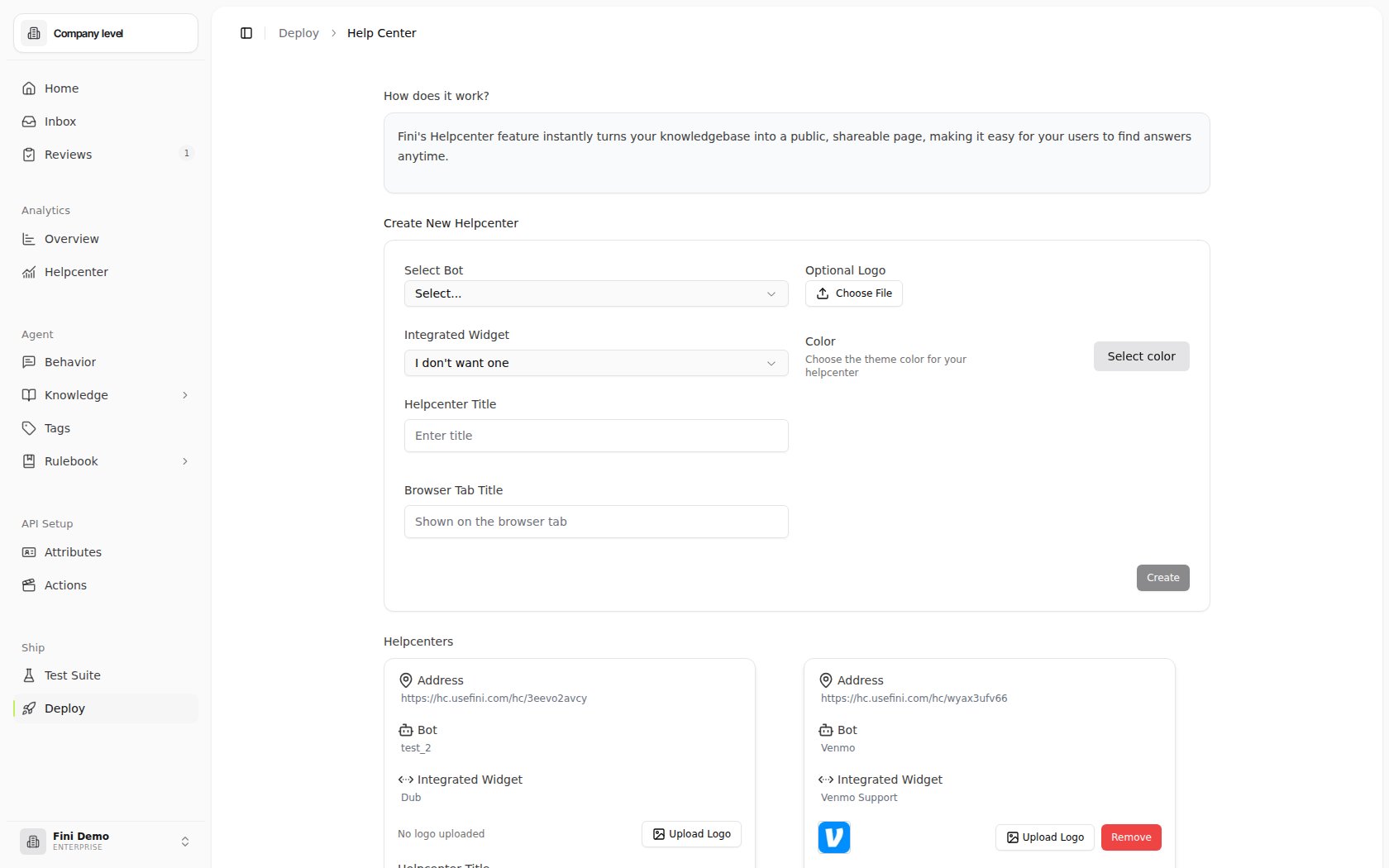 Pick the Fini agent whose public knowledge should power the help center. **This choice is fixed after creation.** To switch agents later, delete the help center and create a new one.
The **Integrated Widget** dropdown attaches an existing widget deployment to the help center. Leave it set to *I don't want one* for a docs-and-search-only experience. This choice is also fixed after creation.
Fill in **Helpcenter Title** (the heading on the page), **Browser Tab Title** (what shows in the browser tab), optionally upload a logo, and pick a theme color. Branding stays editable after creation.
Fini provisions the public help center and generates its hosted address.
The generated address follows the shape `https://hc.usefini.com/hc/` and isn't editable. For a branded subdomain such as `help.yourcompany.com`, see [Use a custom domain](#use-a-custom-domain).
### Manage existing help centers
Pick the Fini agent whose public knowledge should power the help center. **This choice is fixed after creation.** To switch agents later, delete the help center and create a new one.
The **Integrated Widget** dropdown attaches an existing widget deployment to the help center. Leave it set to *I don't want one* for a docs-and-search-only experience. This choice is also fixed after creation.
Fill in **Helpcenter Title** (the heading on the page), **Browser Tab Title** (what shows in the browser tab), optionally upload a logo, and pick a theme color. Branding stays editable after creation.
Fini provisions the public help center and generates its hosted address.
The generated address follows the shape `https://hc.usefini.com/hc/` and isn't editable. For a branded subdomain such as `help.yourcompany.com`, see [Use a custom domain](#use-a-custom-domain).
### Manage existing help centers
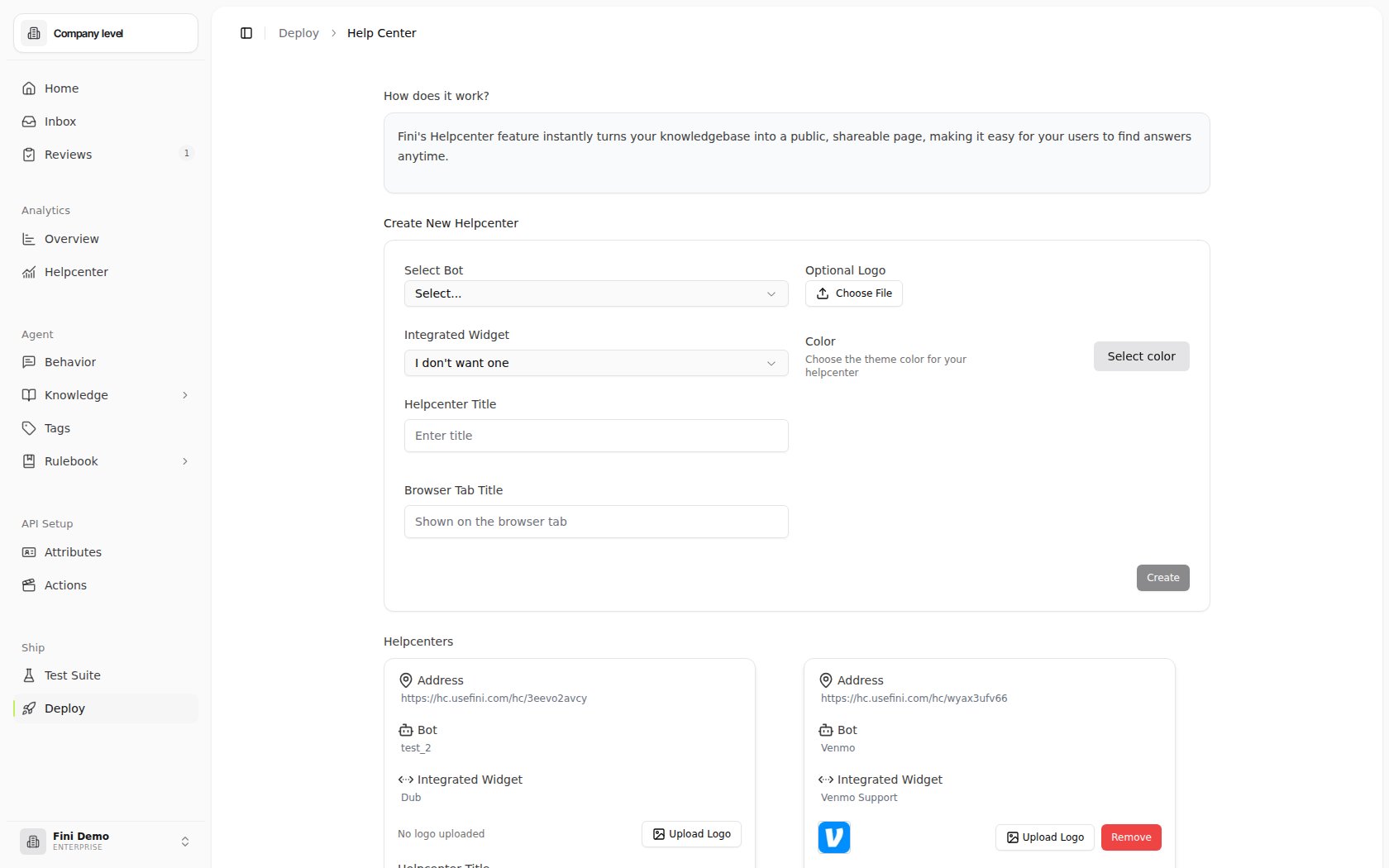 Each card shows:
* **Address**: the hosted public URL.
* **Bot**: the agent backing the help center.
* **Integrated Widget**: the widget currently attached, or *None*.
* **Logo / Helpcenter Title / Browser Tab Title / Color**: the core editable appearance settings.
* **Accent color**: the hover and highlight color used in the public page. If you leave it unset, it follows **Color**.
* **Hero title**: the large landing-page heading. If you leave it blank, the public page uses *"How can we help?"*.
* **Font**: the typeface used on the public help center. The default is **Hanken Grotesk**; you can also choose Inter, Roboto, Open Sans, Lato, Montserrat, Poppins, Nunito, Source Sans 3, DM Sans, Work Sans, Figtree, Manrope, Newsreader, or Merriweather.
From an existing card you can upload or remove a logo, edit the title, browser tab title, hero title, color, accent color, and font, **Save** appearance changes, or **Delete** the help center deployment. Use **Reset accent (follow Color)** when you want hover and highlight states to use the main color again.
Deleting a help center removes the public deployment only. Your folders and articles remain in Articles, and the help center can be re-created for the same agent at any time.
## Curate the landing page
The landing page mirrors your published tree, and the curation controls sit on the folders and articles themselves. Go to **Knowledge → Articles** to set them, rather than the Deploy page.
To pin an article near the top of the landing page, open the article and turn on **Featured on Help Centre** in the status sidebar, next to **Public in helpcenter**. Feature the high-value answers customers should see first.
Each card shows:
* **Address**: the hosted public URL.
* **Bot**: the agent backing the help center.
* **Integrated Widget**: the widget currently attached, or *None*.
* **Logo / Helpcenter Title / Browser Tab Title / Color**: the core editable appearance settings.
* **Accent color**: the hover and highlight color used in the public page. If you leave it unset, it follows **Color**.
* **Hero title**: the large landing-page heading. If you leave it blank, the public page uses *"How can we help?"*.
* **Font**: the typeface used on the public help center. The default is **Hanken Grotesk**; you can also choose Inter, Roboto, Open Sans, Lato, Montserrat, Poppins, Nunito, Source Sans 3, DM Sans, Work Sans, Figtree, Manrope, Newsreader, or Merriweather.
From an existing card you can upload or remove a logo, edit the title, browser tab title, hero title, color, accent color, and font, **Save** appearance changes, or **Delete** the help center deployment. Use **Reset accent (follow Color)** when you want hover and highlight states to use the main color again.
Deleting a help center removes the public deployment only. Your folders and articles remain in Articles, and the help center can be re-created for the same agent at any time.
## Curate the landing page
The landing page mirrors your published tree, and the curation controls sit on the folders and articles themselves. Go to **Knowledge → Articles** to set them, rather than the Deploy page.
To pin an article near the top of the landing page, open the article and turn on **Featured on Help Centre** in the status sidebar, next to **Public in helpcenter**. Feature the high-value answers customers should see first.
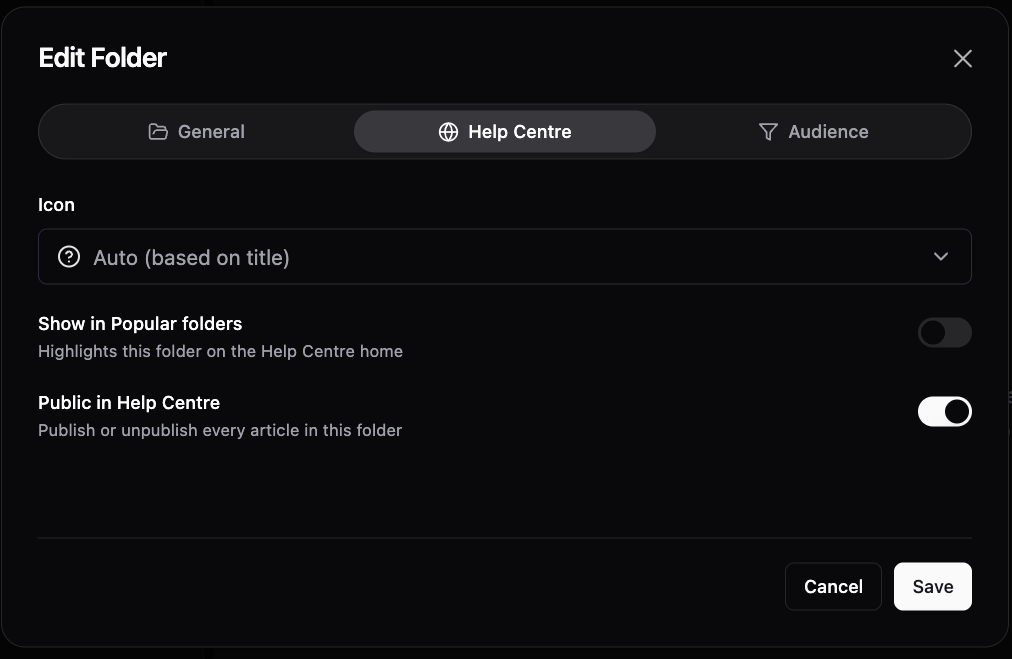
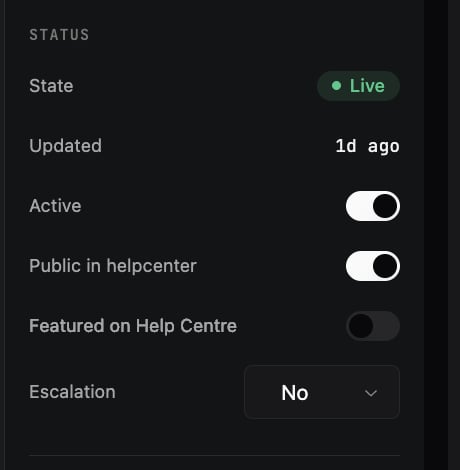 Folder controls live in the folder dialog in the knowledge tree, create a new folder or open **Edit Folder** on an existing one, then switch to its **Help Centre** tab:
* **Show in Popular folders** highlights the folder on the help center home. Use it for common product areas and support categories, so customers can browse high-value content faster.
* **Icon** sets the icon shown on the folder's category card and navigation entry. It defaults to *Auto (based on title)*, which picks an icon from the folder's name; choose a specific one to override it.
* **Public in Help Centre** publishes or unpublishes every article in the folder at once, the folder-level version of the per-article setting in [Where the content comes from](#where-the-content-comes-from).
Folder controls live in the folder dialog in the knowledge tree, create a new folder or open **Edit Folder** on an existing one, then switch to its **Help Centre** tab:
* **Show in Popular folders** highlights the folder on the help center home. Use it for common product areas and support categories, so customers can browse high-value content faster.
* **Icon** sets the icon shown on the folder's category card and navigation entry. It defaults to *Auto (based on title)*, which picks an icon from the folder's name; choose a specific one to override it.
* **Public in Help Centre** publishes or unpublishes every article in the folder at once, the folder-level version of the per-article setting in [Where the content comes from](#where-the-content-comes-from).
 These settings change the public presentation only. They do not change which articles the agent can retrieve or how folders are scoped to agents.
Featured articles and popular folders only appear while the selected item still exists in the selected agent's public snapshot. If an article is unpublished, deleted, detached from the agent, or no longer marked **Public in helpcenter**, it drops out of the public page automatically.
## Use a custom domain
The Deploy page generates a Fini-hosted URL. To serve the help center from your own subdomain, for example `help.yourcompany.com`, create the deployment first, then work through the sequence below. The custom domain layers on top of the existing deployment rather than replacing it.
TLS terminates on Fini's infrastructure. Fini registers your custom hostname, provisions the SSL certificate, and manages its renewal, so you never supply or install a certificate yourself. Your side of the work is one CNAME record, plus one TXT record in the cases where the certificate authority asks for extra proof of ownership.
The sequence alternates between you and Fini:
| # | Who | What happens |
| - | - | - |
| 1 | You | Create the CNAME record. |
| 2 | You | Send Fini the exact domain and confirm the CNAME is live. |
| 3 | Fini | Register the hostname and start certificate provisioning. |
| 4 | You, only if asked | Add the TXT record Fini sends you. |
| 5 | Fini | Confirm routing and HTTPS are active. |
### 1. Create a CNAME record
In your DNS provider, add a CNAME record pointing your chosen subdomain to Fini's proxy:
| Type | Name | Target |
| - | - | - |
| CNAME | `help` | `proxy.finihelpcenter.com` |
Replace `help` with the subdomain label you want to use.
### 2. Share your domain with Fini
Send the exact domain you want connected, for example `help.yourcompany.com`, to the Fini engineering team, and tell us once the CNAME is live. Nothing on our side starts until we have the full hostname.
### 3. Fini registers the hostname
We register the custom hostname on our infrastructure and start certificate provisioning. In many cases the certificate authority validates ownership from the CNAME alone, and the domain goes live without any further DNS work from you.
### 4. Add a TXT record, only if we send you one
If extra domain ownership verification is required, provisioning generates a unique token and we send you the exact record name and value. Add it to your DNS zone as provided:
| Type | Name | Target (Value) |
| - | - | - |
| TXT | `_acme-challenge.help` | *(Paste the exact value Fini sends you)* |
* **Type**: `TXT`
* **Name**: `_acme-challenge.help` (replace `help` with your subdomain label)
* **Value**: the verification token we send you
* **TTL**: `Auto`
Don't create an `_acme-challenge` record preemptively. The token only exists once provisioning has started, and it's unique to that run, so a guessed or stale value fails validation and delays the certificate.
### 5. Fini confirms the domain is live
Once validation completes, we confirm that the custom domain and the SSL certificate are active. Open the subdomain over HTTPS to check the help center loads under your own branding.
## Verify it's working
Open the **Address** shown on the help center card.
Confirm the page branding matches the title, browser tab title, logo, color, accent color, hero title, and font you configured.
Confirm only the folders and articles marked **Public in helpcenter** are visible, and that the folder structure matches what you built in Articles.
Confirm featured articles are pinned on the landing page, popular folders are highlighted, and folder icons render the way you set them.
Search for a question your agent should answer and verify the result quality.
If you attached a widget, open it on the public page and confirm it loads and responds correctly.
## Measure and improve
If your workspace has at least one help center, **Helpcenter Analytics** appears in the main sidebar. Use it to understand how visitors use the public help center before they open the widget or contact support.
Help center analytics is separate from [conversation analytics](/en/analytics). Conversation analytics measures agent conversations, tags, sources, escalation reasons, and resolution; help center analytics measures public-page behavior: visits, searches, article engagement, traffic sources, and content gaps.
The page has five tabs:
| Tab | Use it for |
| - | - |
| **Overview** | Traffic, search, and engagement summary cards, visits over time, entry sources, and top articles for the selected date range. Engagement includes **Avg. Time on Page** and **Avg. Session Duration** once pageleave data is available. |
| **Search** | Top queries, zero-result searches, search click-through rate, AI searches, and instant searches. |
| **Articles** | Article and category performance, including views, search clicks, average time on page, and **% Helpful** where article feedback exists. |
| **Feedback** | Helpful and unhelpful article votes, daily feedback trends, and the articles collecting the most feedback. |
| **Sources** | Entry-source and referrer breakdowns, so you can see where visitors come from. |
Alongside the page metrics, Fini records the **Was this article helpful?** votes from article pages, so you can see which content resolves questions and which needs work. Article tables use those votes to calculate **% Helpful**. If an article has no votes yet, the helpfulness cell shows `—`.
Duration metrics come from public help center pageview and pageleave events. They can show `—` for fresh deployments or short windows until visitors have opened and left pages in the selected period.
Zero-result searches are content gaps. Click **Draft article** from the Search tab to open [Magic Articles](/en/knowledge/magic-articles) with the missed query already seeded, then send the draft through Review before publishing.
Use the date picker to compare performance across a selected window. The export menu downloads **Articles CSV** and **Searches CSV** reports for deeper analysis outside Fini.
## Why the help center isn't working
Check, in order:
1. Are the relevant folders or articles marked **Public in helpcenter** in [Articles](/en/knowledge/articles)?
2. Are those folders or articles attached to the same agent you selected when creating the help center?
3. Is the content live and not still waiting in [Review](/en/knowledge/review)?
The help center search retrieves from the same articles your agent uses. If results are wrong, the underlying article is wrong, fix it in Articles and the help center updates automatically. If the article doesn't exist yet, the gap should surface in Review through the AI Knowledge Manager's continuous detection. You can also check Review directly to see if a draft for this question is already queued.
Featured and popular selections only render while the item is in the agent's public snapshot. Confirm the article or folder is still attached to the agent, marked **Public in helpcenter**, and live rather than waiting in Review. Items that fall out of the snapshot drop off the landing page automatically.
The agent is fixed after creation. Delete the help center and create a new one with the correct agent.
The widget association is also fixed after creation. Delete and recreate the help center to change it.
Make sure you clicked **Save** on the help center card after editing the title, browser tab title, logo, color, accent color, hero title, or font. If the accent color was reset, it intentionally follows **Color** again.
Confirm the CNAME record points to `proxy.finihelpcenter.com`, then confirm you've sent the exact hostname to the Fini engineering team. Registration and certificate provisioning happen on our side, so nothing resolves until we've completed that step.
The certificate is still provisioning, or validation is waiting on a TXT record. If we sent you an `_acme-challenge` record, confirm it's present in your DNS zone with the exact name and value we provided, and that no older or self-created version of the record is still in place. Tell us once it's live and we'll re-check validation.
Expected behavior. Fini supports one help center deployment per agent. Edit the existing one, or delete it and create a new one.
## Related topics
- [Channel overview](/en/deploy/overview.md)
- [Articles](/en/knowledge/articles.md)
- [Knowledge](/en/knowledge/overview.md)
This documentation is built and hosted on [Mintlify](https://mintlify.com), a developer documentation platform.
These settings change the public presentation only. They do not change which articles the agent can retrieve or how folders are scoped to agents.
Featured articles and popular folders only appear while the selected item still exists in the selected agent's public snapshot. If an article is unpublished, deleted, detached from the agent, or no longer marked **Public in helpcenter**, it drops out of the public page automatically.
## Use a custom domain
The Deploy page generates a Fini-hosted URL. To serve the help center from your own subdomain, for example `help.yourcompany.com`, create the deployment first, then work through the sequence below. The custom domain layers on top of the existing deployment rather than replacing it.
TLS terminates on Fini's infrastructure. Fini registers your custom hostname, provisions the SSL certificate, and manages its renewal, so you never supply or install a certificate yourself. Your side of the work is one CNAME record, plus one TXT record in the cases where the certificate authority asks for extra proof of ownership.
The sequence alternates between you and Fini:
| # | Who | What happens |
| - | - | - |
| 1 | You | Create the CNAME record. |
| 2 | You | Send Fini the exact domain and confirm the CNAME is live. |
| 3 | Fini | Register the hostname and start certificate provisioning. |
| 4 | You, only if asked | Add the TXT record Fini sends you. |
| 5 | Fini | Confirm routing and HTTPS are active. |
### 1. Create a CNAME record
In your DNS provider, add a CNAME record pointing your chosen subdomain to Fini's proxy:
| Type | Name | Target |
| - | - | - |
| CNAME | `help` | `proxy.finihelpcenter.com` |
Replace `help` with the subdomain label you want to use.
### 2. Share your domain with Fini
Send the exact domain you want connected, for example `help.yourcompany.com`, to the Fini engineering team, and tell us once the CNAME is live. Nothing on our side starts until we have the full hostname.
### 3. Fini registers the hostname
We register the custom hostname on our infrastructure and start certificate provisioning. In many cases the certificate authority validates ownership from the CNAME alone, and the domain goes live without any further DNS work from you.
### 4. Add a TXT record, only if we send you one
If extra domain ownership verification is required, provisioning generates a unique token and we send you the exact record name and value. Add it to your DNS zone as provided:
| Type | Name | Target (Value) |
| - | - | - |
| TXT | `_acme-challenge.help` | *(Paste the exact value Fini sends you)* |
* **Type**: `TXT`
* **Name**: `_acme-challenge.help` (replace `help` with your subdomain label)
* **Value**: the verification token we send you
* **TTL**: `Auto`
Don't create an `_acme-challenge` record preemptively. The token only exists once provisioning has started, and it's unique to that run, so a guessed or stale value fails validation and delays the certificate.
### 5. Fini confirms the domain is live
Once validation completes, we confirm that the custom domain and the SSL certificate are active. Open the subdomain over HTTPS to check the help center loads under your own branding.
## Verify it's working
Open the **Address** shown on the help center card.
Confirm the page branding matches the title, browser tab title, logo, color, accent color, hero title, and font you configured.
Confirm only the folders and articles marked **Public in helpcenter** are visible, and that the folder structure matches what you built in Articles.
Confirm featured articles are pinned on the landing page, popular folders are highlighted, and folder icons render the way you set them.
Search for a question your agent should answer and verify the result quality.
If you attached a widget, open it on the public page and confirm it loads and responds correctly.
## Measure and improve
If your workspace has at least one help center, **Helpcenter Analytics** appears in the main sidebar. Use it to understand how visitors use the public help center before they open the widget or contact support.
Help center analytics is separate from [conversation analytics](/en/analytics). Conversation analytics measures agent conversations, tags, sources, escalation reasons, and resolution; help center analytics measures public-page behavior: visits, searches, article engagement, traffic sources, and content gaps.
The page has five tabs:
| Tab | Use it for |
| - | - |
| **Overview** | Traffic, search, and engagement summary cards, visits over time, entry sources, and top articles for the selected date range. Engagement includes **Avg. Time on Page** and **Avg. Session Duration** once pageleave data is available. |
| **Search** | Top queries, zero-result searches, search click-through rate, AI searches, and instant searches. |
| **Articles** | Article and category performance, including views, search clicks, average time on page, and **% Helpful** where article feedback exists. |
| **Feedback** | Helpful and unhelpful article votes, daily feedback trends, and the articles collecting the most feedback. |
| **Sources** | Entry-source and referrer breakdowns, so you can see where visitors come from. |
Alongside the page metrics, Fini records the **Was this article helpful?** votes from article pages, so you can see which content resolves questions and which needs work. Article tables use those votes to calculate **% Helpful**. If an article has no votes yet, the helpfulness cell shows `—`.
Duration metrics come from public help center pageview and pageleave events. They can show `—` for fresh deployments or short windows until visitors have opened and left pages in the selected period.
Zero-result searches are content gaps. Click **Draft article** from the Search tab to open [Magic Articles](/en/knowledge/magic-articles) with the missed query already seeded, then send the draft through Review before publishing.
Use the date picker to compare performance across a selected window. The export menu downloads **Articles CSV** and **Searches CSV** reports for deeper analysis outside Fini.
## Why the help center isn't working
Check, in order:
1. Are the relevant folders or articles marked **Public in helpcenter** in [Articles](/en/knowledge/articles)?
2. Are those folders or articles attached to the same agent you selected when creating the help center?
3. Is the content live and not still waiting in [Review](/en/knowledge/review)?
The help center search retrieves from the same articles your agent uses. If results are wrong, the underlying article is wrong, fix it in Articles and the help center updates automatically. If the article doesn't exist yet, the gap should surface in Review through the AI Knowledge Manager's continuous detection. You can also check Review directly to see if a draft for this question is already queued.
Featured and popular selections only render while the item is in the agent's public snapshot. Confirm the article or folder is still attached to the agent, marked **Public in helpcenter**, and live rather than waiting in Review. Items that fall out of the snapshot drop off the landing page automatically.
The agent is fixed after creation. Delete the help center and create a new one with the correct agent.
The widget association is also fixed after creation. Delete and recreate the help center to change it.
Make sure you clicked **Save** on the help center card after editing the title, browser tab title, logo, color, accent color, hero title, or font. If the accent color was reset, it intentionally follows **Color** again.
Confirm the CNAME record points to `proxy.finihelpcenter.com`, then confirm you've sent the exact hostname to the Fini engineering team. Registration and certificate provisioning happen on our side, so nothing resolves until we've completed that step.
The certificate is still provisioning, or validation is waiting on a TXT record. If we sent you an `_acme-challenge` record, confirm it's present in your DNS zone with the exact name and value we provided, and that no older or self-created version of the record is still in place. Tell us once it's live and we'll re-check validation.
Expected behavior. Fini supports one help center deployment per agent. Edit the existing one, or delete it and create a new one.
## Related topics
- [Channel overview](/en/deploy/overview.md)
- [Articles](/en/knowledge/articles.md)
- [Knowledge](/en/knowledge/overview.md)
This documentation is built and hosted on [Mintlify](https://mintlify.com), a developer documentation platform.