

How Actions relate to the Rulebook
The Rulebook is the brain; Actions are the hands. When the Rulebook walks its tree and reaches a Tool node, it invokes the Action that node points to: The Action owns only the middle: take typed inputs, call your APIs, return typed outputs. Intent matching, input extraction, branching, and the final reply are all the Rulebook’s job. This separation is why an Action’s description doesn’t affect whether it fires, routing is encoded in the tree’s structure, not in the Action.Actions vs Attributes
Both are built on the same Data Steps engine, but they trigger differently:
Rule of thumb: if context is needed on every reply, it’s an Attribute. If it’s only needed when the customer asks for it, and especially if it has side effects, it’s an Action.
Anatomy of an action
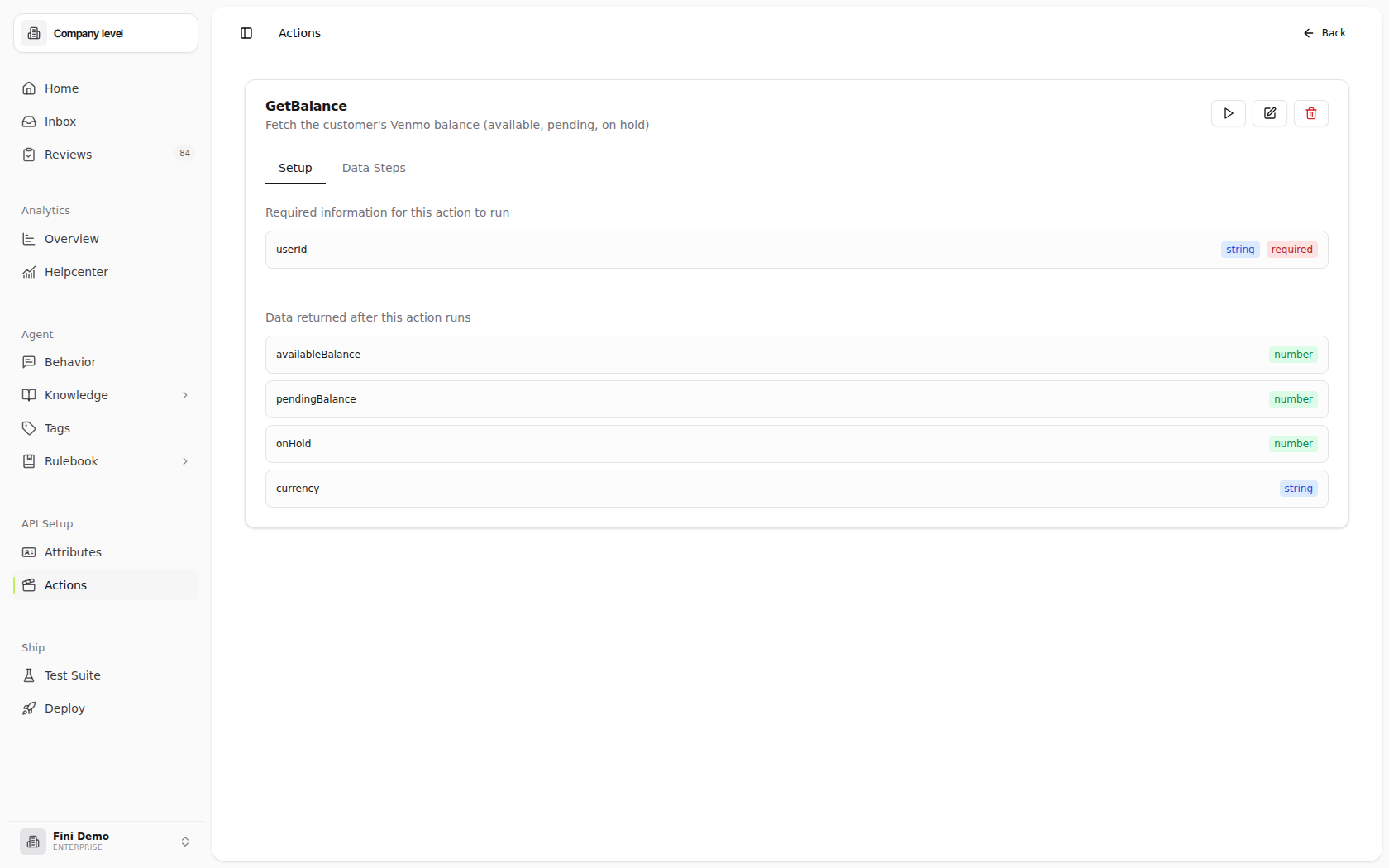
The detail view has two tabs: Setup and Data Steps.Setup tab
Two sections, named exactly as the UI labels them:- Required information for this action to run, the input fields. Each field has a name, a type (
string/number/boolean), and arequiredflag. These define the contract the Rulebook must satisfy before invoking the Tool node, typically by placing a Read node upstream (LLM extraction) or referencing context already on the conversation (such as an Attribute). - Data returned after this action runs, the output fields, each with a name and type. These flow back into the tree for downstream Check nodes to branch on, Reply nodes to interpolate, and other Tool nodes to consume as input.
Data Steps tab
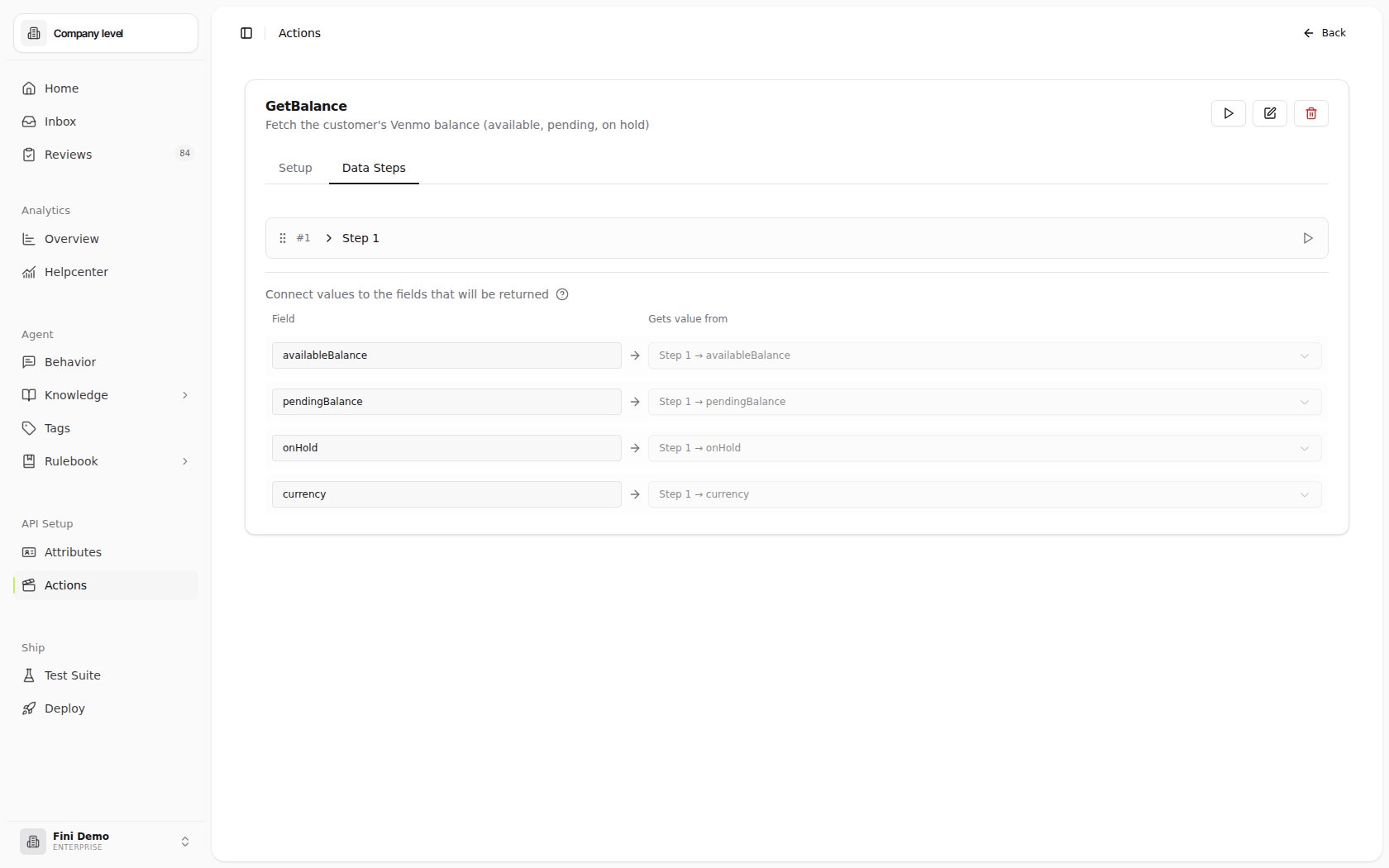
The chain of HTTP requests that takes the inputs, calls your APIs, and produces the outputs, the same engine as Attributes’ Data Collection Steps. If the data lives in a warehouse such as Redshift, put a scoped HTTPS endpoint in front of it rather than connecting the Action directly to the database.
Below the steps, a Connect values to the fields that will be returned panel maps each declared output field to a value a step produced (
Field → Gets value from: Step → response field).
Creating an action
1
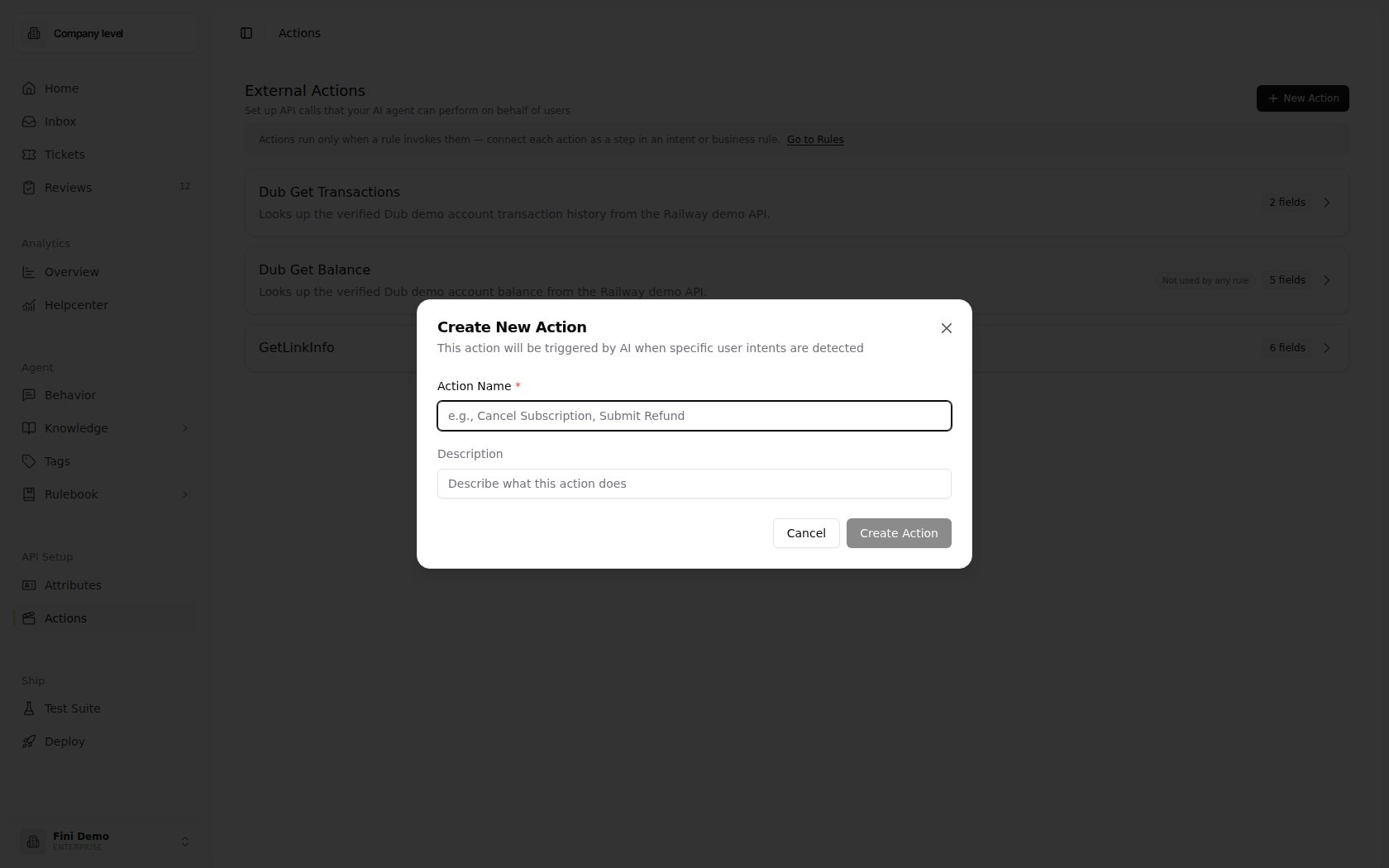
Open the Actions page and click New Action
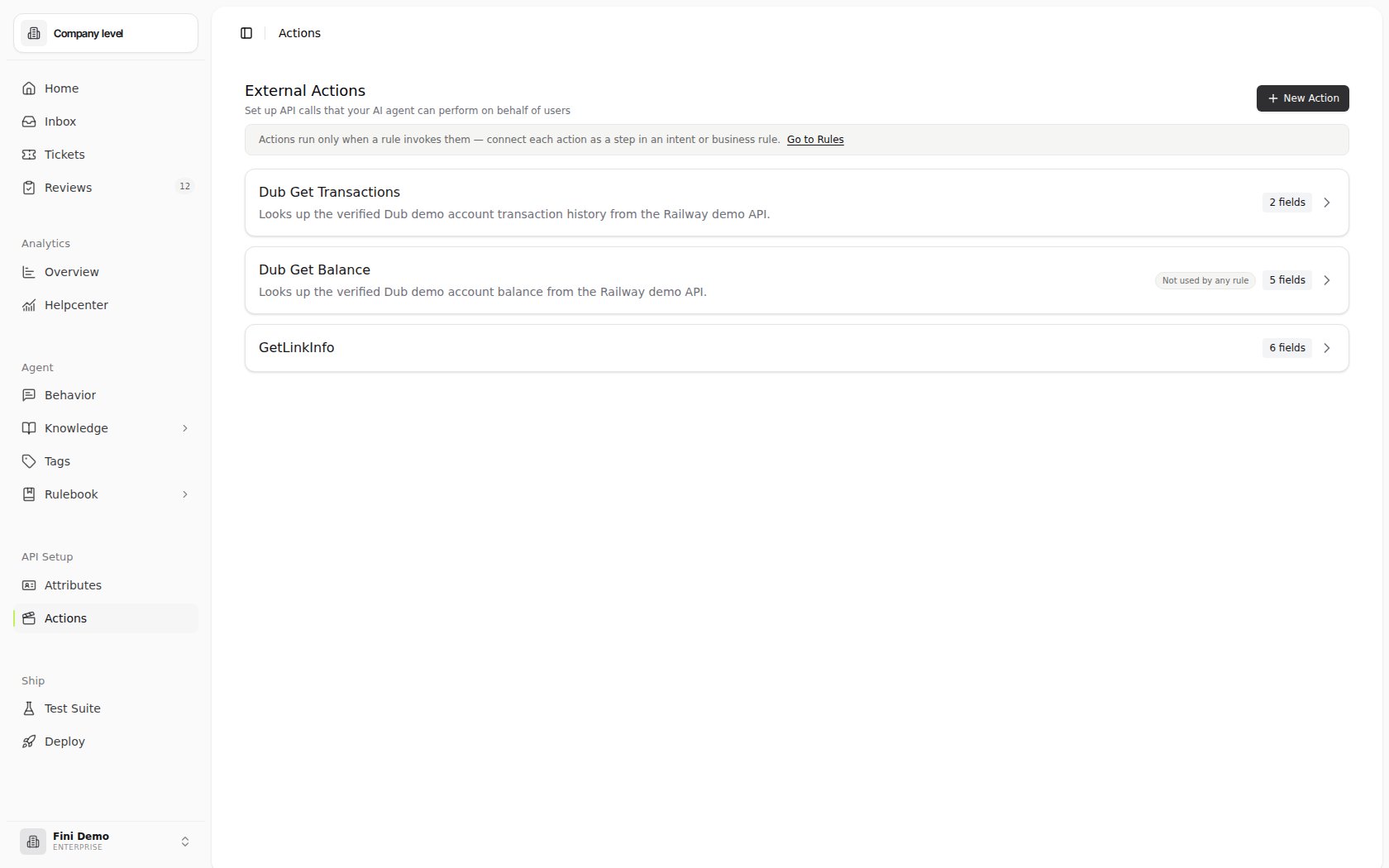
Land on API Setup → Actions in the sidebar. The list shows every action in the workspace with its field count.
2
Fill in the basics
- Name (required): an imperative phrase, Skip Smart Save, Cancel Plastic Card, Reorder Physical Card.
- Description: a human-readable summary for teammates browsing the list. It does not trigger the action; routing lives in the Rulebook.
3
Define the inputs (Setup tab)
Under Required information for this action to run, list every field the action needs. Mark a field
required when the action cannot proceed without it. Once the Rulebook routes a conversation here, the LLM extracts these from context (or asks the customer for any required field it can’t find).4
Define the outputs (Setup tab)
Under Data returned after this action runs, list every field the action returns. Downstream Reply and Check nodes read these, e.g. a
success boolean and a message string.5
Wire up the Data Steps (Data Steps tab)
Add one or more HTTP requests that take the inputs and produce the outputs. Use the
$ picker to interpolate input fields into URLs, headers, or bodies. Then, in Connect values to the fields that will be returned, map each output field to a step’s response value.6
Test before saving
Click the Play button at the top of the detail view. Provide sample inputs, run the chain, and verify the response matches the outputs you declared.
7
Save, then wire it into the Rulebook
Click Save. The action now exists in the workspace but still won’t run. Open the Rulebook, add a Tool node pointing at this action under a rule that describes the triggering intent, and publish. The rule’s agent assignments decide which agents can invoke it.
A worked example: cancel subscription
A canonical action. The customer says “I want to cancel my plan”, a Rulebook rule matches the cancellation intent and invokes this action, the action calls your billing API, and a Reply node confirms.1
Create the action
Name: “Cancel Subscription”. Description: “Cancels the customer’s active subscription via the billing API. Returns confirmation id, refund amount, and effective date.” (For the team to read; not what triggers it.)
2
Define the inputs
string
required
The customer’s unique identifier. Typically already on the conversation from a User Attribute lookup, so the upstream Read node rarely has to ask the customer for it.
string
Why the customer is cancelling. The agent collects this only if the customer volunteers one, leave optional rather than forcing extraction.
3
Define the outputs
string
The billing system’s confirmation reference for this cancellation. Interpolated into the agent’s confirmation reply.
number
The refund amount in your billing currency. Surface this to the customer so they know what to expect.
string
ISO 8601 date the cancellation takes effect, typically the next billing date.
4
Add the Data Step
Step Name: Cancel via Billing API. Method:
POST. URL: the cancellation endpoint on your billing API, with the customerId input interpolated into the path via the $ picker. Headers: an Authorization header carrying your billing token. Body: a JSON object containing reason, interpolated from the input.Save From Response: map the billing API’s response fields to your output names, for example, the billing system’s confirmation_id saves as confirmationId, its refund.amount saves as refundAmount, and its effective_at saves as effectiveDate.5
Connect values to the returned fields
In the panel below the step, map each output to the step’s response:
confirmationId ← Cancel via Billing API → confirmationId, and likewise for refundAmount and effectiveDate.6
Test, save, and wire into the Rulebook
Run the Test panel with a real
customerId from your dev environment and confirm the response shape matches your declared outputs. Save, then add a Tool node referencing Cancel Subscription under the rule that matches the cancellation intent.reason = "the product isn't working for us"; a Check node confirms the customer is identified (customerId non-null in context); a Tool node invokes Cancel Subscription; the confirmationId / refundAmount / effectiveDate outputs flow back; a Reply node composes the confirmation. The Action owns only the API call and the typed result, everything else is the Rulebook.
Chaining actions
A single Tool node rarely covers an end-to-end workflow. The common pattern is to chain Tool nodes inside a Sequence, each Tool’s output feeding the next Tool’s input. For example, a refund flow might run:- Lookup Order, input
orderId; outputcustomerId,totalAmount,isRefundable. - Verify Eligibility, input
customerId,totalAmount(from step 1); outputeligible,policyReason. - Submit Refund, input
customerId,amount(=totalAmountfrom step 1); outputrefundId,eta.
eligible == false and route to a Reply node that explains the denial. Because upstream outputs become downstream inputs, define each action’s input/output fields precisely, otherwise downstream nodes can’t see fields they expected, or pass values that don’t match the next Tool’s required types.
Which agents can run an action
Actions live at the workspace level. Unlike Attributes, there is no per-agent attachment, you don’t toggle which agents an action belongs to. An action becomes effective for an agent entirely through the Rulebook. A rule has agent assignments; if a rule is assigned to an agent and its tree contains a Tool node referencing the action, that agent can trigger it. The same action wired into multiple rules is reachable from every agent those rules are assigned to. So when a new action isn’t getting called, the question is “is there a published rule, assigned to the responding agent, with a Tool node pointing at this action?”, not “is this action attached to this agent?”The public API does expose agent-assignment routes that accept action IDs (List agent assignments, Assign to agents). These records are stored, but the backend does not check them when a rule invokes an action; at runtime, assignments only gate Attributes. Creating one never makes an action run, and its absence never blocks one.
Why an action isn’t being called
No published rule references this action
No published rule references this action
Actions don’t self-trigger. Open the Rulebook, find or create a rule with a Tool node pointing at this action, and publish it. This is the most common cause and matches the in-product warning.
The rule isn't assigned to the responding agent
The rule isn't assigned to the responding agent
A rule only runs on agents in its assignment list. Open the rule and confirm the responding agent is selected.
The Rulebook branch above the Tool node doesn't match
The Rulebook branch above the Tool node doesn't match
The Steps root picked a different branch, or a Check node above the Tool failed. Use the Rulebook test panel to walk an example message through the tree and see which node short-circuits.
A required input field isn't being supplied
A required input field isn't being supplied
A Read node upstream may be failing to extract the field, or the context it relies on (such as an Attribute) isn’t populated. The Tool node can’t fire without every required input.
A Data Step is failing
A Data Step is failing
Run the action’s Test panel with realistic inputs. A 401 (auth expired), 404 (record not found), or a response that doesn’t match your Save From Response paths surfaces here.
The outputs don't match what your API returns
The outputs don't match what your API returns
The action runs but downstream Reply / Check nodes read nothing useful. Compare the Connect values mappings against an actual API response.