

Connect Fini to Intercom so your AI agent can read incoming conversations, draft replies, and respond on the brands and channels you choose. Configuration lives entirely on the Fini side once Intercom is authorized — bot-to-brand mapping, reply timing, and reply-behavior rules are all set from the Intercom deploy page.Documentation Index
Fetch the complete documentation index at: https://docs.usefini.com/llms.txt
Use this file to discover all available pages before exploring further.
Before you connect
You’ll need:- An Intercom workspace with permission to install third-party apps. If you’re not sure whether you have it, ask your Intercom admin or workspace owner.
- At least one bot already created in Fini. If you haven’t created one yet, do that first from the home page.
If your Intercom workspace has multiple brands, you can map a different Fini bot to each brand. If you only have one brand, the same bot will respond across all incoming traffic.
What Fini does with your Intercom
Intercom shows the full list of permissions Fini requests on the consent screen during authorization — read each line before you approve. The operations Fini performs on your workspace:- Read workspace identity — fetches your workspace ID and the admin user authorizing the install.
- Read incoming conversations — required so the bot can understand context and compose replies.
- Reply on conversations — as the authorized admin, when a mapped bot decides to respond.
- Read and create tags — Fini creates and uses three tags on your workspace to mark conversation state:
Fini Other Category,Fini Escalation, andFini Skip Webhook. If tags with these names already exist, Fini reuses them.
Connect Intercom
When you first open the Intercom deploy page, you’ll see an Authorize Integration button. Intercom uses pure OAuth — there’s no subdomain or credentials to enter ahead of time.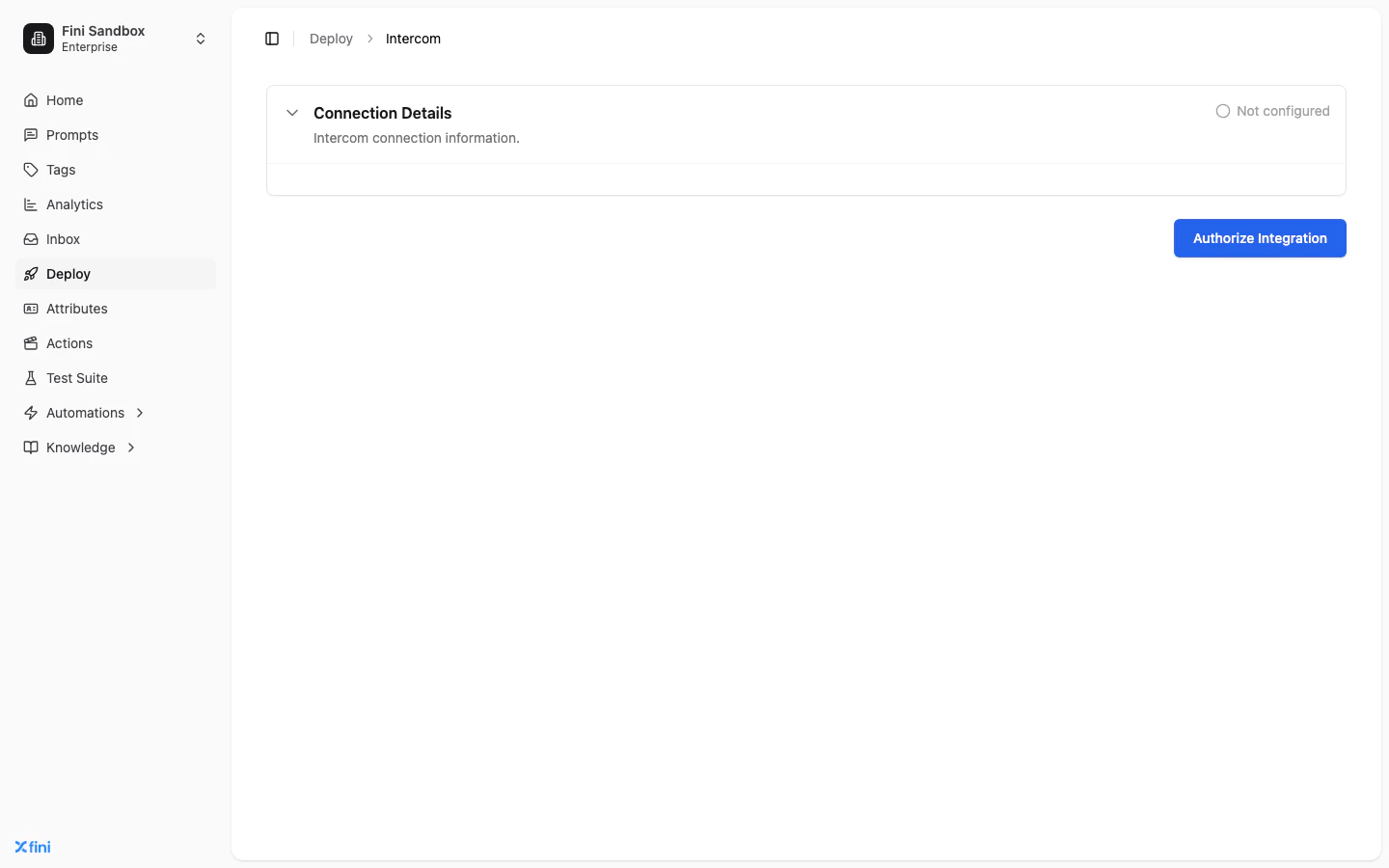
Click Authorize Integration
An Intercom authorization window opens. Sign in with an account that has permission to install apps in your Intercom workspace.
Choose the workspace and approve
If your Intercom account has access to multiple workspaces, pick the one you want to connect to Fini. Review and approve the permissions Fini requests.
Configure your deployment
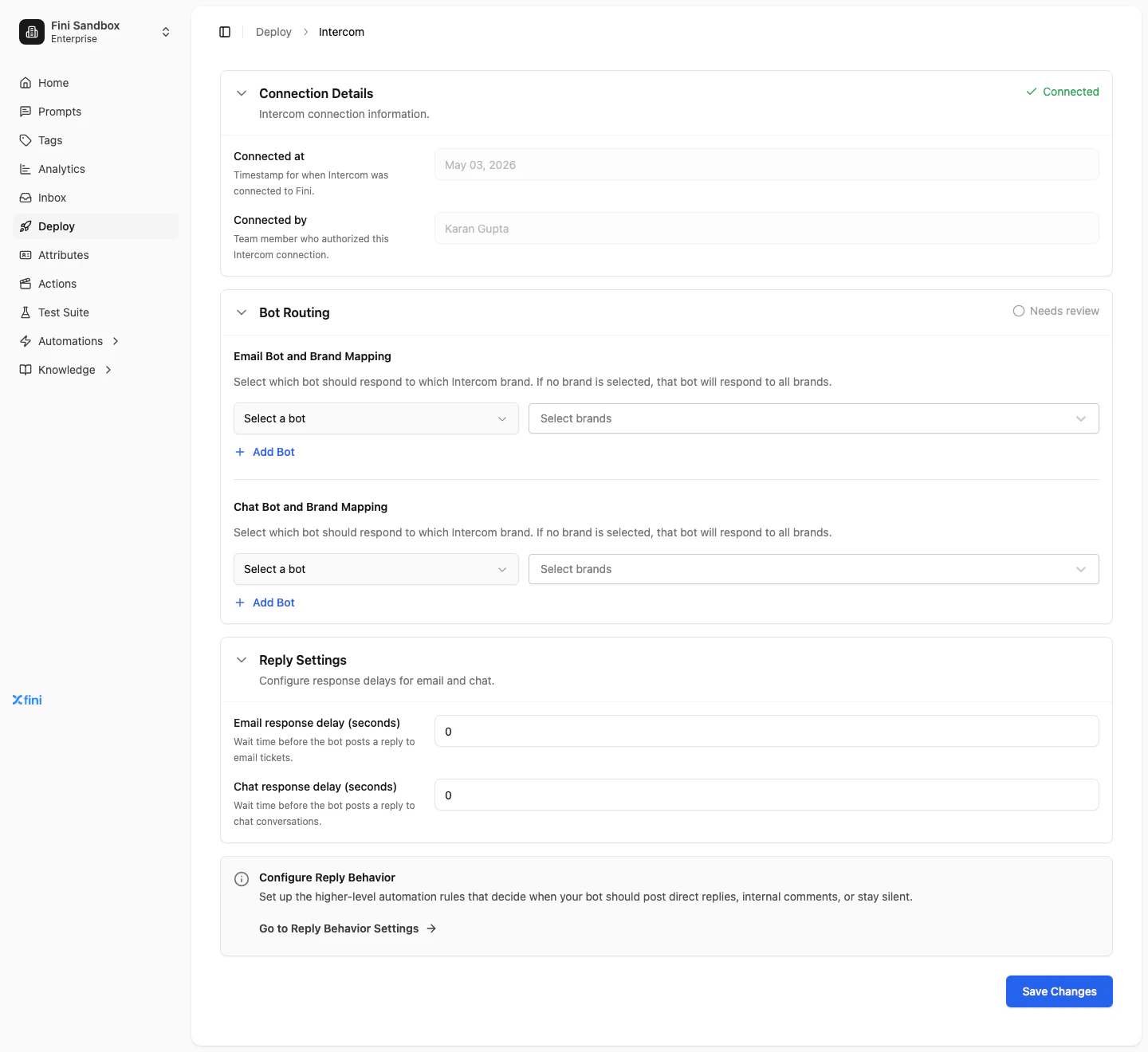
After connecting, three sections appear on the Intercom deploy page. Each is independent — you can configure them in any order.Connection Details
Read-only metadata about the integration:- Connected at — the timestamp of the most recent successful authorization.
- Connected by — the team member whose Intercom account authorized the integration.
Bot Routing
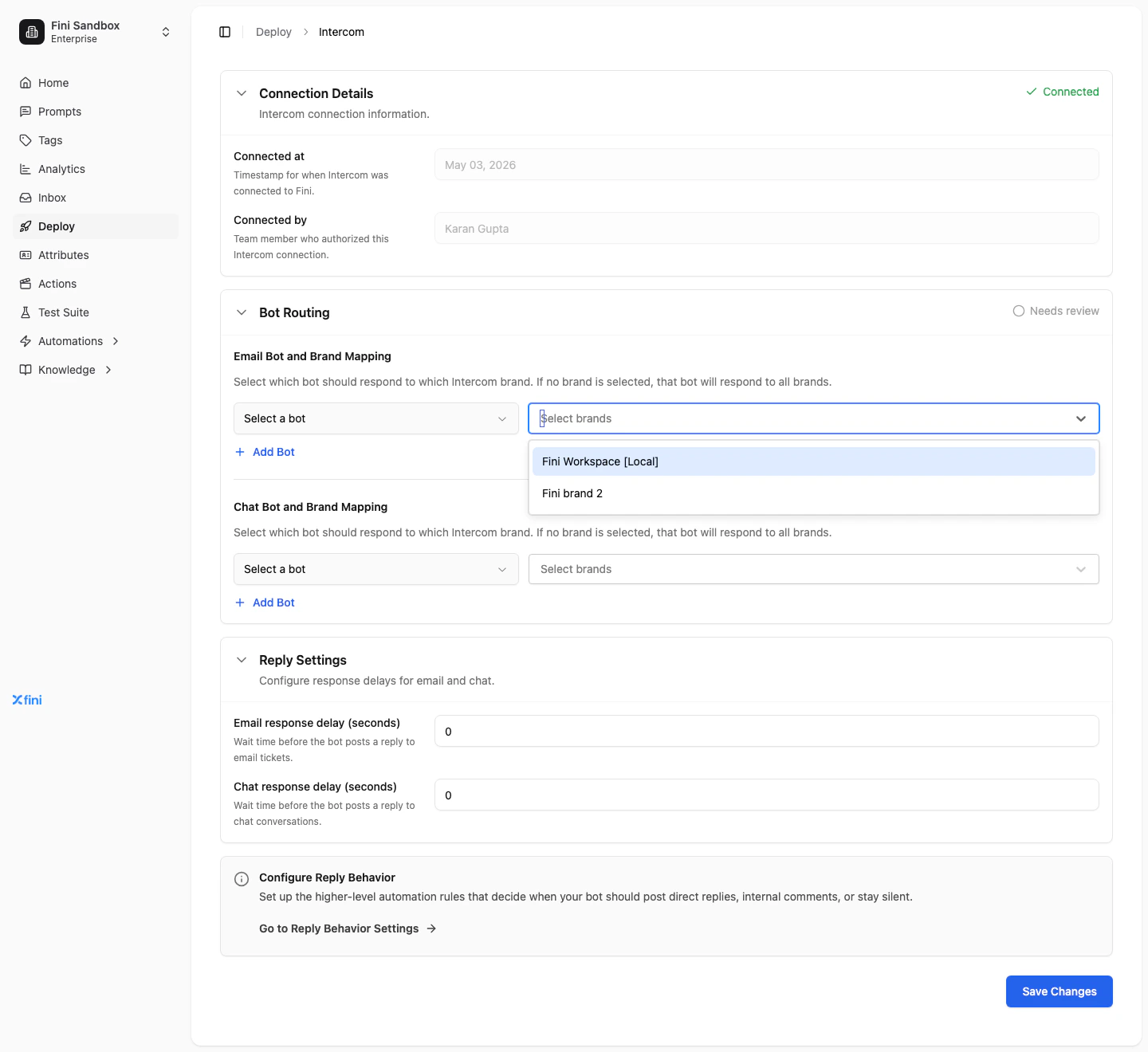
Decides which Fini bot replies on which Intercom brand, separately for email tickets and chat conversations. For each channel (Email Bot and Brand Mapping, Chat Bot and Brand Mapping):- Click Select a bot and pick the Fini bot that should respond.
- Click Select brands and choose the brand names that bot should respond to.
How Fini reads the brand at runtime
Intercom doesn’t have a built-in “brand” field on conversations. Fini reads the brand from a custom conversation attribute namedBrand (or brand — case-insensitive). For each incoming conversation, Fini:
- Looks for
custom_attributes.Brand(thencustom_attributes.brand) on the conversation. - Compares that value against the brand names you selected in Bot Routing.
- Picks the bot mapped to the matching brand.
- If no brand attribute is set, or no mapping matches, Fini falls back to the wildcard bot — the bot mapped without selecting any brands.
Brand custom attribute must be populated on each conversation before Fini receives it. Common ways to do this:
- An Intercom Workflow that sets
Brandbased on the channel, intake source, or recipient address - Your own server-side script that creates the conversation with the attribute pre-set
- Manual entry by support agents on each conversation
Reply Settings
Controls how long Fini waits before posting a reply.- Email response delay (seconds) — wait time before the bot posts on email tickets.
- Chat response delay (seconds) — wait time before the bot posts on chat conversations.
0 makes the bot reply as soon as it has an answer. Higher values can make the bot feel less robotic, or give human agents a chance to take over first.
Configure Reply Behavior
Reply Behavior is the higher-level rule layer that decides when the bot should post a direct reply, leave an internal note, or stay silent. Click Go to Reply Behavior Settings on the Intercom page to configure these rules — they apply across all channels, not just Intercom.Verify it’s working
- From your connected Intercom workspace, send a test conversation to one of the brands you’ve mapped.
- Wait the configured response delay, then check the conversation — the mapped Fini bot should have posted a reply.
- If nothing appears, see Troubleshooting.
Troubleshooting
Authorization failed or expired. Click Authorize Integration again from the Intercom deploy page. Make sure you’re signing in with an Intercom account that has app-installation permission for the workspace. The bot isn’t replying. Check, in order:- Is a bot mapped to the brand the conversation came in on? (Empty brand selector = “all brands”; an explicit brand list excludes everything else.)
- Is the bot enabled and trained?
- Is the response delay much higher than expected?
- Are there Reply Behavior rules that suppress replies on this channel or conversation type?
Found something on this page that’s stale or wrong? The screenshots are auto-refreshed from the live app — if the prose has drifted from the UI, please open an issue.