

Overview
Home is the dashboard landing page for your workspace. It shows high-level operating signals — live articles, review backlog, resolved conversations, and CSAT — plus shortcuts into review work, Inbox triage, and the bots in your workspace. Each bot is an agent: its own knowledge scope, its own Behavior, its own Rulebook, and its own deployment surfaces. Most teams end up running multiple bots side by side — one for customer support, one for internal IT, one scoped to a specific product line, one for a specific brand. Same workspace, different lanes.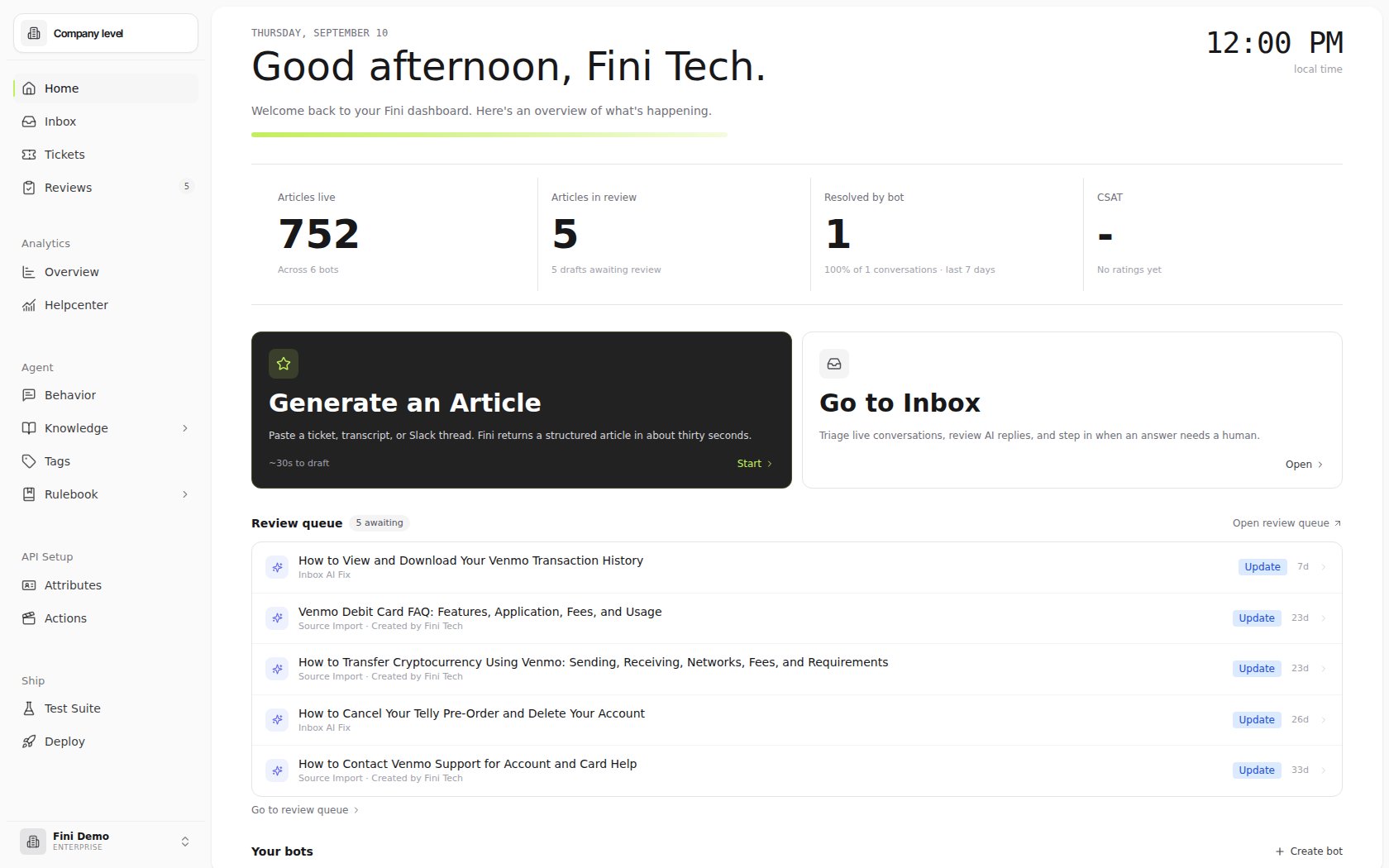
Managing bots from Home
The Your bots section lists the bots in the workspace with conversation, resolved, and resolution-rate snapshots. Use + Create bot when your workspace needs a new agent, or open an existing bot to continue configuration.The agent selector
Most pages in Fini (Knowledge, Inbox, Test Suite, Analytics) scope their data to a single agent using the agent selector in the product shell. The selector defaults to whichever agent was last active; switch it to scope the page to a different agent’s data. The selector behaves slightly differently per surface, but the principle is the same:Knowledge
When set to All, the Knowledge page shows every article across every agent in your account. Switch the selector to a specific agent to filter the folder tree and article list to only the knowledge connected to that agent. See Articles for how per-agent scoping actually works (toggle attachments, don’t duplicate articles).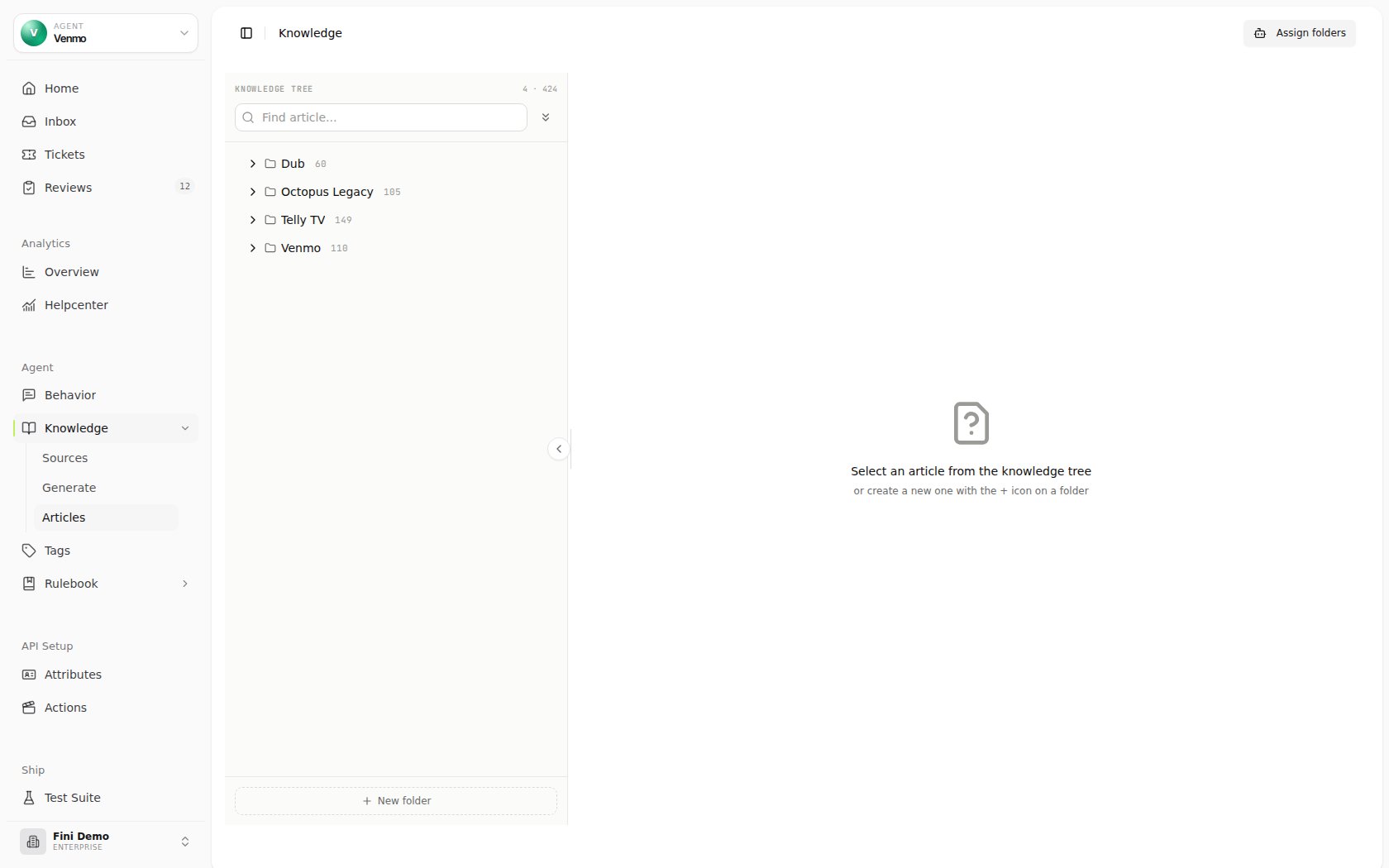
Knowledge with the agent selector set to All. The full folder tree across all agents is visible.
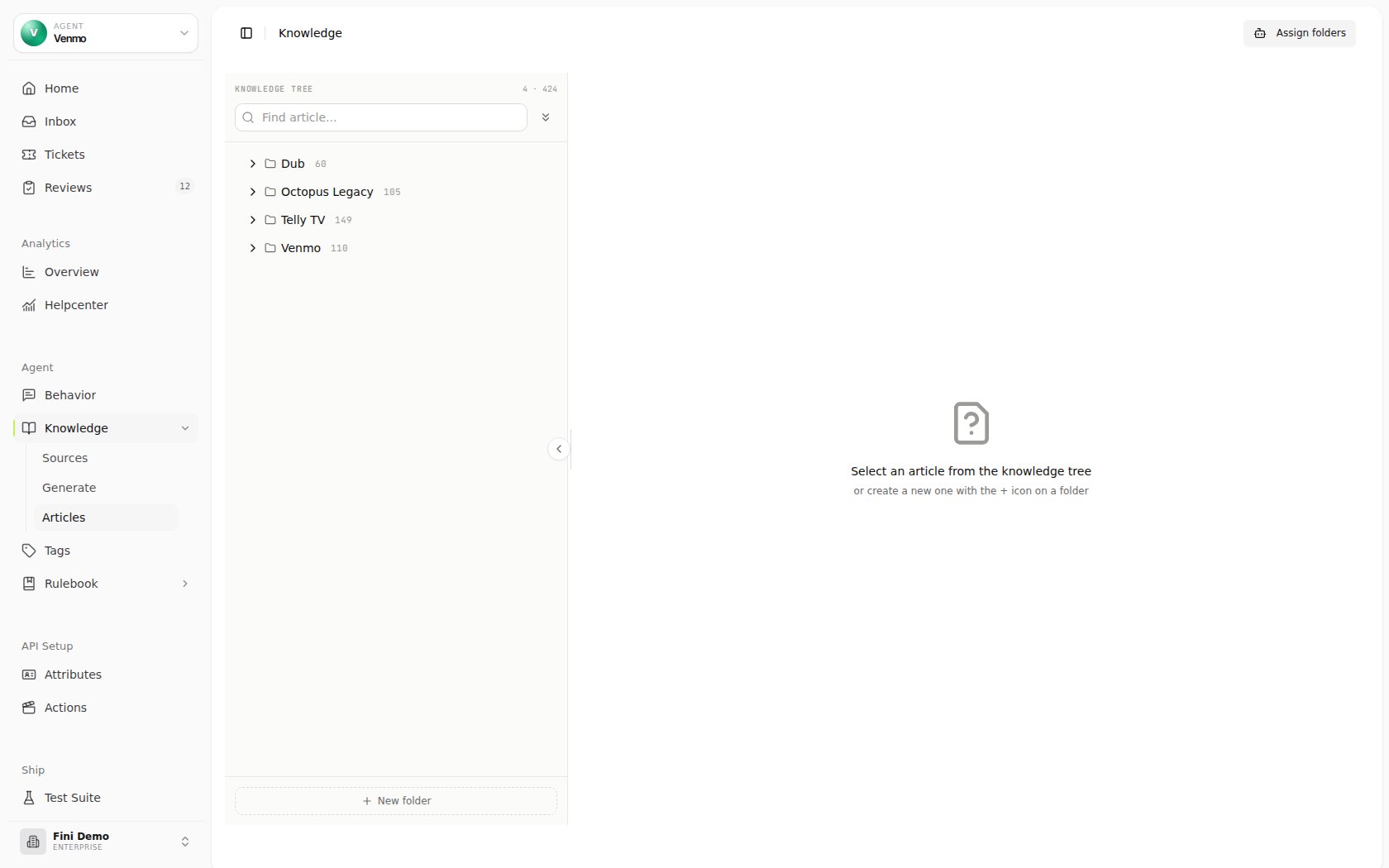
Knowledge filtered to a single agent. The folder tree now shows only the sources and articles connected to that agent.
Inbox
The Inbox scopes conversations to a single agent the same way. Once you select an agent, use the date range picker and filter chips (Ticket Id, Conversation status, Channel, Source, and + Filter) to drill into exactly the conversations you need.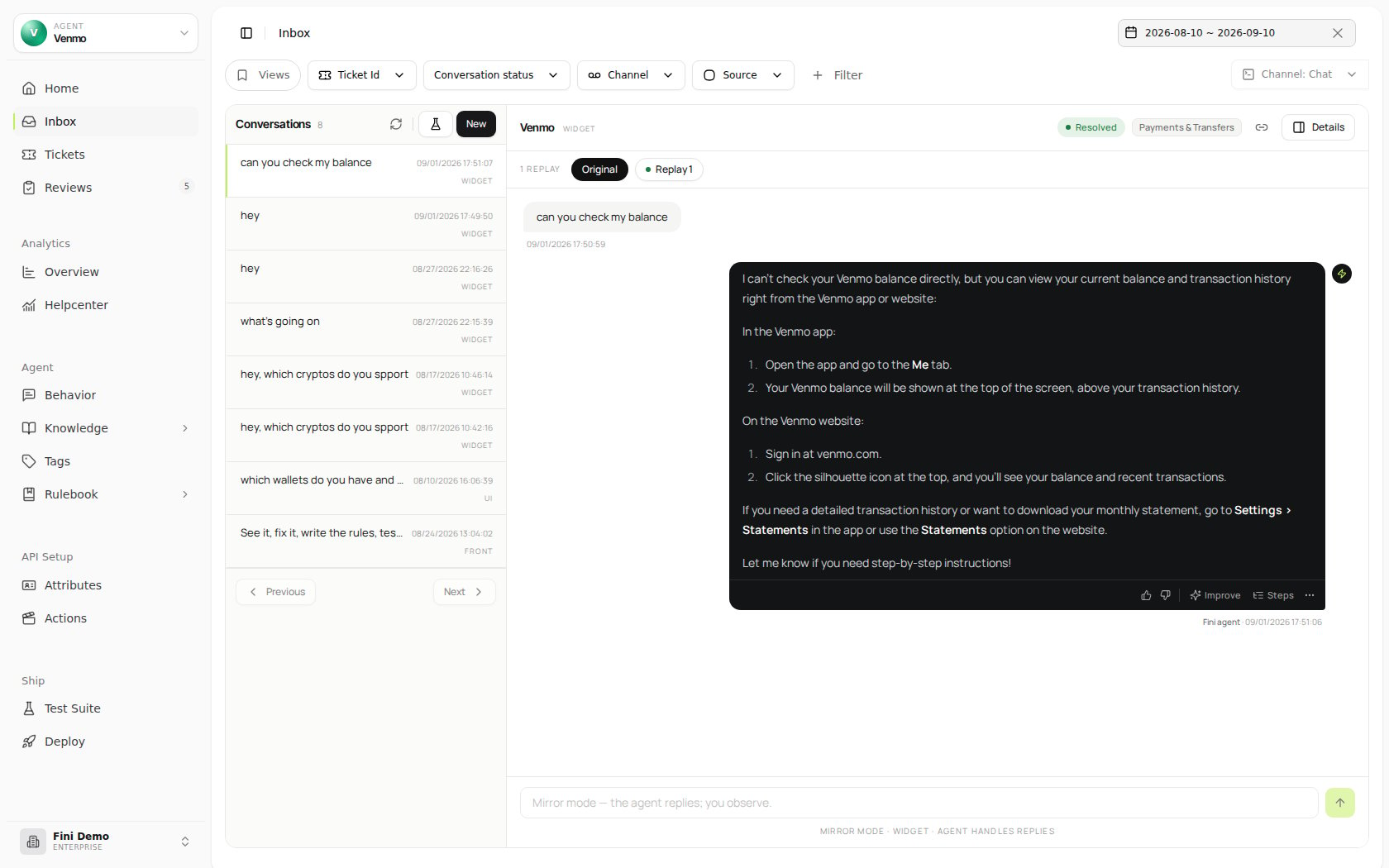
Inbox filtered to a specific agent. The agent selector, date range, and filter chips are all visible in the toolbar.
Test Suite
Test Suite runs test cases against the selected agent. See Test Suite.Analytics
Here you can scope metrics to the selected agent. See Analytics.What to configure next
Once an agent is selected, the next steps fall into three groups: what it knows, how it behaves, and where it runs.What the agent knows
Knowledge
Connect sources (URLs, files, Drive, Notion, Confluence, Zendesk), review and publish articles, and scope which articles this agent can see.
Attributes
Bring in customer context — plan tier, order status, account flags — that the agent can reference when answering.
How the agent behaves
Behavior
Persona, tone, escalation triggers, and the instructions that shape how the agent reasons and responds.
Rulebook
Deterministic flows for high-leverage intents — order status, password reset, cancellation. The Rulebook runs before the LLM gets the question.
Reply Rules
Reply-time controls: when to send, when to suppress, when to escalate, when to take an action.
Tags
Categorization for conversations — used by Analytics to slice volume by topic and by Rulebook to gate behavior.
Where the agent runs
Deploy
Connect the agent to Zendesk, Intercom, Front, Salesforce, the widget, your help center, or any of the other supported surfaces.
Test Suite
Validate the agent against scenarios before it goes live — and continuously after, as you change knowledge or prompts.