

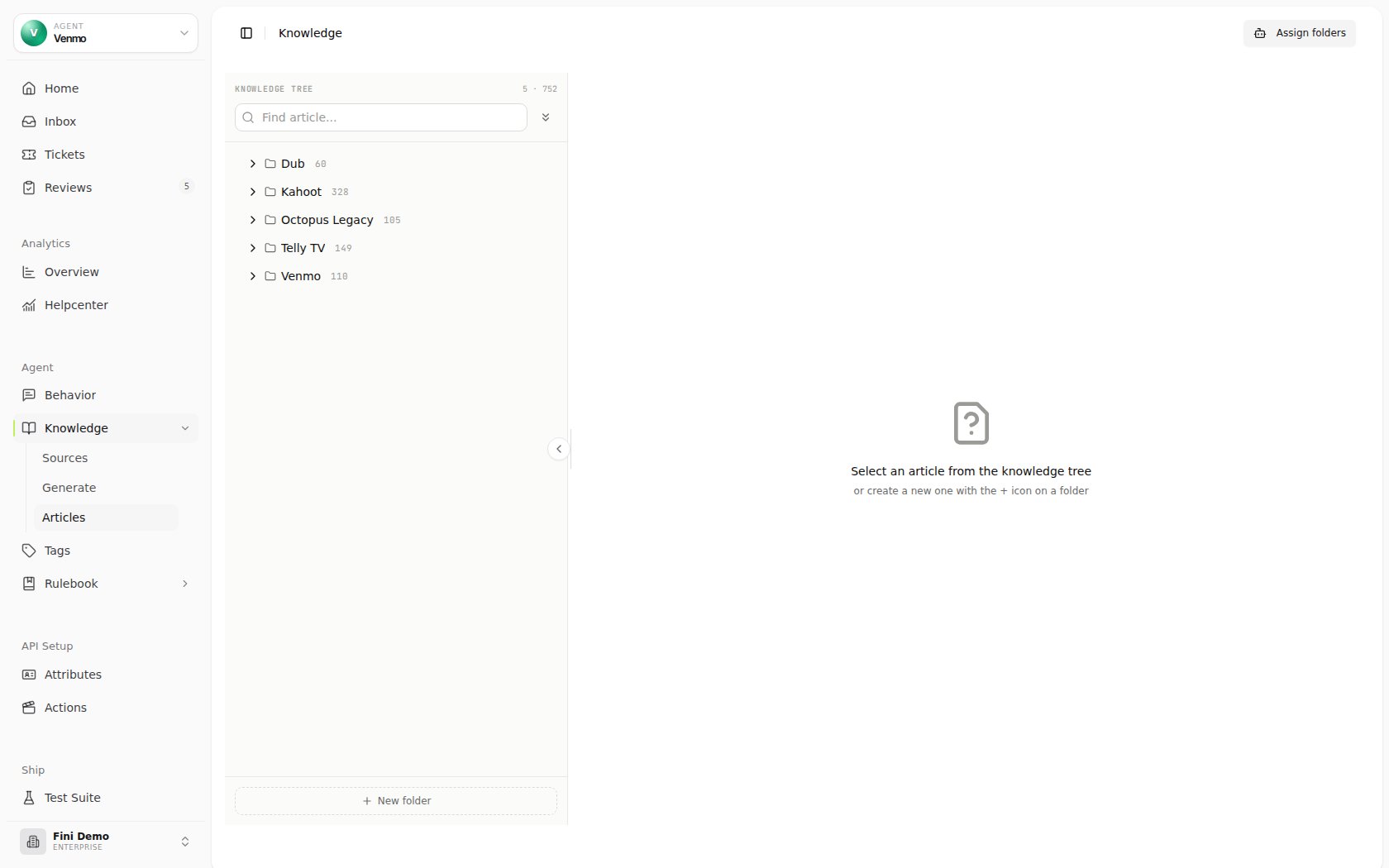
Think of Articles as your Knowledge Graph, the curated, deduplicated, conflict-resolved version of everything your team knows. Sources are raw input; Articles is canonical truth. The reason Fini funnels everything through here is so the agent has one place to retrieve from, with no ambiguity about which version of a fact wins.
The folder hierarchy
Articles live inside folders. Folders can contain other folders (subfolders) and articles. The structure is up to you; common patterns:By product area
Applications & Verification
Cards & Issuing
Decisioning & ReviewsBy customer journey
Onboarding / First Setup
Day-to-day / Common Issues
Cancellation / Refund PolicyBy language
English / Account
Spanish / Cuenta
German / Konto- Folder (parent): contains subfolders and / or articles.
- Leaf folder: a folder that contains only articles, no further subfolders.
- Article: an individual unit of knowledge.
Search articles and folders
The search field above the tree matches article titles, questions, keywords, Main Knowledge, and Agent Instruction, plus folder names. Search is case-insensitive. While searching, choose Tree to keep matches in their folder hierarchy or Results for a flat list of matching articles with their folder paths. Tree view hides unrelated branches and opens paths to matches. A folder-name match keeps its contents available in Tree view; those articles do not appear in Results unless their own content matches. The counters distinguish matching articles from matching folders. Clear the search to return to the full tree. Expand all / Collapse all controls the hierarchy in one click.Anatomy of an article
Each article has five authored fields, a few toggles, and attribution metadata. The editor opens in the right pane when you click an article in the tree.Title
Title
The question or topic phrasing customers would recognize. Drives both human navigation and (lightly) the agent’s retrieval. Example: “Operating address is required” error when updating an application.
Main Knowledge
Main Knowledge
The body of the article, the actual content the agent will reference when composing replies. Use plain prose, lists, blockquotes, or step sequences as fits the topic. Click Edit in the top-right of this section to modify.This is also where you should put any caveats, edge cases, or sub-conditions. The richer the Main Knowledge, the better the agent’s answer.
Agent Instruction
Agent Instruction
Specific guidance for how the agent should use this article. Distinct from Main Knowledge: this is meta-instruction about how to deliver the answer, not the answer itself.Examples:
- “Explain that this error is caused by a validation introduced on Oct 15, 2025 for Thread clients. Confirm whether either trigger applies before suggesting a fix.”
- “Always include the help-center link at the end.”
- “Don’t quote internal pricing.”
Keywords
Keywords
Tag-style chips that act as retrieval anchors, terms, error codes, product names, internal jargon. The agent uses these to surface this article when a customer message contains any of them.Mix exact strings (
operatingAddress, BO, Thread clients) with conceptual phrases (beneficial owner, registered agent address). 6-12 keywords is a healthy range. Click the × on any chip to remove it.Questions
Questions
A list of paraphrased questions this article answers, each as a full sentence in its own input row. The agent uses these to match customer questions to this article, so listing variations meaningfully improves the chance the article matches a real customer query.Examples for the same article:
- Can a business application use an international address?
- Where do I add
operatingAddresswhen updating an application? - Can I use a PO Box as my business address?
Escalation
Escalation
A yes/no dropdown. When set to Yes, hitting this article triggers an escalation path instead of (or in addition to) serving the answer, useful for topics that should always loop in a human (refund disputes, account closures, security incidents).
Article-level toggles
On a saved article, two toggles in the status sidebar control whether the article is in play:- Active, when off, the article is excluded from agent retrieval entirely. Use to take an article offline temporarily without deleting it (for example, while you’re rewriting it, or during an incident where the answer is in flux).
- Public in helpcenter, when on, the article is also exposed via the public help center surface (if you’ve enabled the Help Center deploy). When off, it’s agent-internal only.
Attribution
The side panel shows where an article came from and who last touched it:- Created by: the teammate, API key actor, or system process that created the article.
- Last updated by: the teammate, API key actor, or system process that last changed the article.
- Source: the article origin, such as Manual article, Created via API, Magic article, Source import, Inbox suggestion, Fix review, Overnight generation, or Fini Scout.
Header utilities
Three buttons in the article editor header help you debug and validate an article without leaving the page:View training conversations
Past conversations Fini used to train or refine this article. Use this to see what real customer wording produced this article in the first place.
View training sources
The Sources or other inputs this article was derived from. Click through to verify the upstream content is still accurate.
View usage in conversations
Live conversations where this article was retrieved and served. The fastest way to confirm an article is actually getting used, and to spot cases where it was retrieved but didn’t answer the question well.
Assigning knowledge to agents
The agent selector on the Knowledge page is the single most important control on the page. It determines which folders and articles each agent can actually see. When a specific agent is selected, use Assign folders to update that agent’s folder access.1
Pick an agent from the selector
Defaults to
All, which shows every folder and article in the workspace regardless of attachment. Picking a specific agent enters agent-specific mode.2
Click Assign folders
The assignment mode shows which folders are available to the selected agent.
3
Toggle folders on and off
Turn on what the agent should see; turn off what it shouldn’t. Folder toggles cascade to the articles inside them, unless you explicitly narrow access lower in the tree.
4
Save
Save to commit the attachment changes for the selected agent.
Support agent
Applications & Verification
Cards & Issuing
Decisioning & ReviewsSales agent
Pricing
Comparisons
IntegrationsInternal agent
Internal Playbooks
Escalation
PricingDon’t duplicate to scope. If two agents need overlapping-but-different knowledge, scope at the folder-attachment layer. Duplicating articles across folders creates exactly the kind of conflict Review exists to prevent.
Folder configuration
Folders aren’t just containers, they carry their own configuration that cascades to every article inside. Right-click a folder (or use its contextual menu) to open Edit Folder.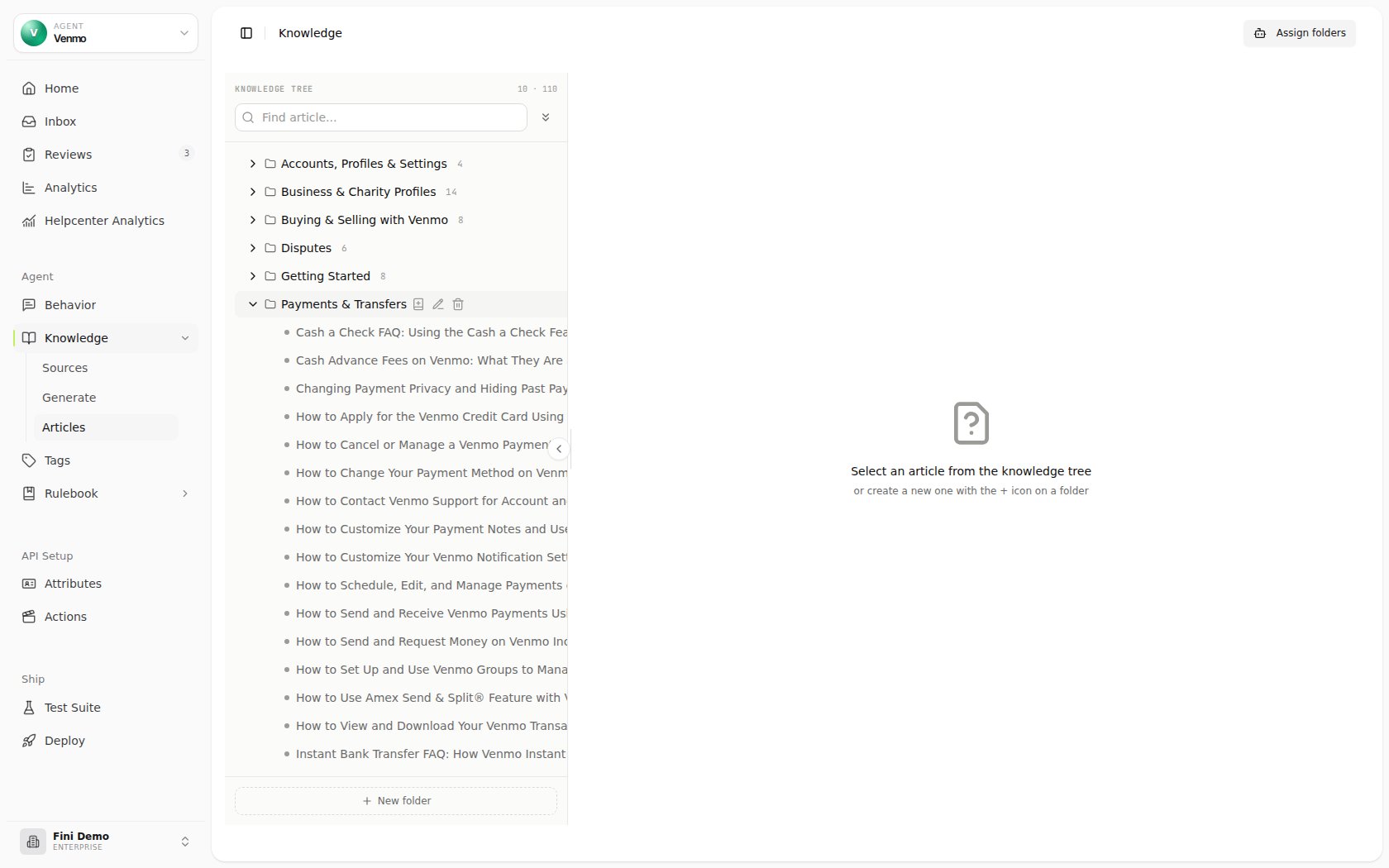
- Title: the folder’s display name.
- Description: a one-liner describing what’s inside. Helps humans navigating the tree; the agent doesn’t retrieve from this.
- Icon: the visual icon used for this folder on the public Help Center, when the folder is public.
- Select Bot for Attribute Filters: which agent the attribute filters below apply to (filters can be configured per agent).
- Attribute Filters: conditional rules that gate retrieval (see below).
- Active: when off, every article in this folder is excluded from agent retrieval. Use this to take a whole topic area offline (for example, sunset a deprecated product line in one click rather than toggling every article).
- Public in helpcenter: same as the article-level toggle, but for the entire folder.
Attribute filters
Each folder can carry an Attribute Filter Builder that gates retrieval on conversation context. Same agent, different rules depending on who’s talking. Examples:- “Only retrieve from
Refund Exceptions / *whenUser Attributes → tenure > 12 months.” - “Only show
Enterprise Setup / *whenUser Attributes → plan = Enterprise.” - “Only retrieve from
California-Specific Compliance / *whenUser Attributes → state = California.” - “Only surface
Spanish / *whenSystem Attribute → conversation language = Spanish.”
Multiple filters with the same attribute = OR · Different attributes = AND.For example, two filters on
state (California or Texas) combine as OR. A filter on state = California plus a filter on plan = Enterprise combine as AND, both must match.Creating folders and articles
1
Add a folder
Click + New folder at the bottom of the knowledge tree, or use a folder’s contextual action to add beneath an existing folder. Provide a name and an optional description.
2
Add an article inside a folder
Hover the folder and click the + action. The editor opens with empty Title / Main Knowledge / Agent Instruction / Keywords / Questions fields.
3
Author the content
Fill in Title and Main Knowledge first; those are the substance. Add Keywords next (6-12 tags). Then Questions (5-10 paraphrasings). Use Agent Instruction only if you have a specific reason. Decide whether Escalation should be Yes or No.
4
Set folder-level filters and toggles
If the article applies only to certain customer attributes, configure the parent folder’s Attribute Filter rather than the article itself. Confirm the folder’s Active and Public toggles are set the way you want.
5
Save
Saving sends the article to Review if your workspace has review-and-approval enabled, or directly to live if not.
Editing existing articles
Click an article from the tree to open the editor. Every field is editable in place, click Edit in the Main Knowledge header to modify the body, click into any Keyword/Question row to change it, or click the × / trash icons to remove individual items. The Last updated timestamp at the top tells you when the canonical version was last saved. Content edits go through the same Review path as new articles when review-and-approval is enabled. The article-level visibility toggles save separately, as described above. Restoring an earlier content version keeps the current Active and Public in helpcenter settings; it does not re-enable or republish an article you have taken offline.Bulk operations
The tree supports a few bulk operations from the page header:- Expand all / Collapse all the tree.
- Translate: take selected articles and translate them into another language (creating new articles in a target folder).
- Trending: surface the articles getting the most retrieval hits, useful for prioritizing what to keep current.
Deletion
The Delete Article button sits at the bottom-right of the editor. Deleting an article is per-article; to delete a whole folder (and every subfolder and article inside it), use the contextual menu on the folder itself.Why an article isn’t being used
The article isn't attached to the responding agent
The article isn't attached to the responding agent
Switch the top-right selector to that agent, confirm the parent folder is toggled on, save. This is by far the most common cause.
The article or its parent folder is set to Inactive
The article or its parent folder is set to Inactive
Check the Active toggle on the article and on every ancestor folder. An inactive folder excludes everything inside it.
A parent folder's attribute filter is excluding this conversation
A parent folder's attribute filter is excluding this conversation
Open the folder’s Attribute Filter Builder in Edit Folder. The predicate may be more restrictive than you expect, especially if it requires an attribute that isn’t being populated on the conversation. Remember: same-attribute filters OR together, different-attribute filters AND together.
Keywords don't include the customer's terms
Keywords don't include the customer's terms
Open View usage in conversations to see what real customer messages look like. If they use a term that isn’t in Keywords (an error code, a product nickname, an alias), add it.
The Questions list doesn't match how customers phrase it
The Questions list doesn't match how customers phrase it
Open View training conversations or jump to Inbox, find a real customer message that should have hit this article but didn’t, and add that phrasing to the Questions list. Retrieval leans heavily on this field.
A more specific article is winning retrieval
A more specific article is winning retrieval
If two articles both match a query, the more specific one usually wins. Check whether a narrower article is intercepting the query, and if so, decide whether that’s correct or whether the two should be merged via Review.
The article is still in Review
The article is still in Review
Drafts don’t serve customers. Open Review Queue and confirm the article has been approved.