

Why Sources isn’t the source of truth. A help center is written for humans browsing a website, it has marketing language, outdated pages, contradictions between articles, and gaps where the answer is “ask support.” Pointing an agent directly at it inherits all of that. Sources contributes raw material; Articles is the curated, deduplicated, conflict-resolved version your agent actually uses. See Knowledge for the full model.
Source types
Fini supports six source types out of the box. The difference between them is how the content gets in: some you upload directly, some you pull from a URL, some come over a connected OAuth integration.Adding sources
Click + Add Sources in the top-right of the page. The Add Source dialog opens with a tile per source type (“Popular” badges flag the most-used ones); pick the type you want, and Fini hands you off to the type-specific add flow.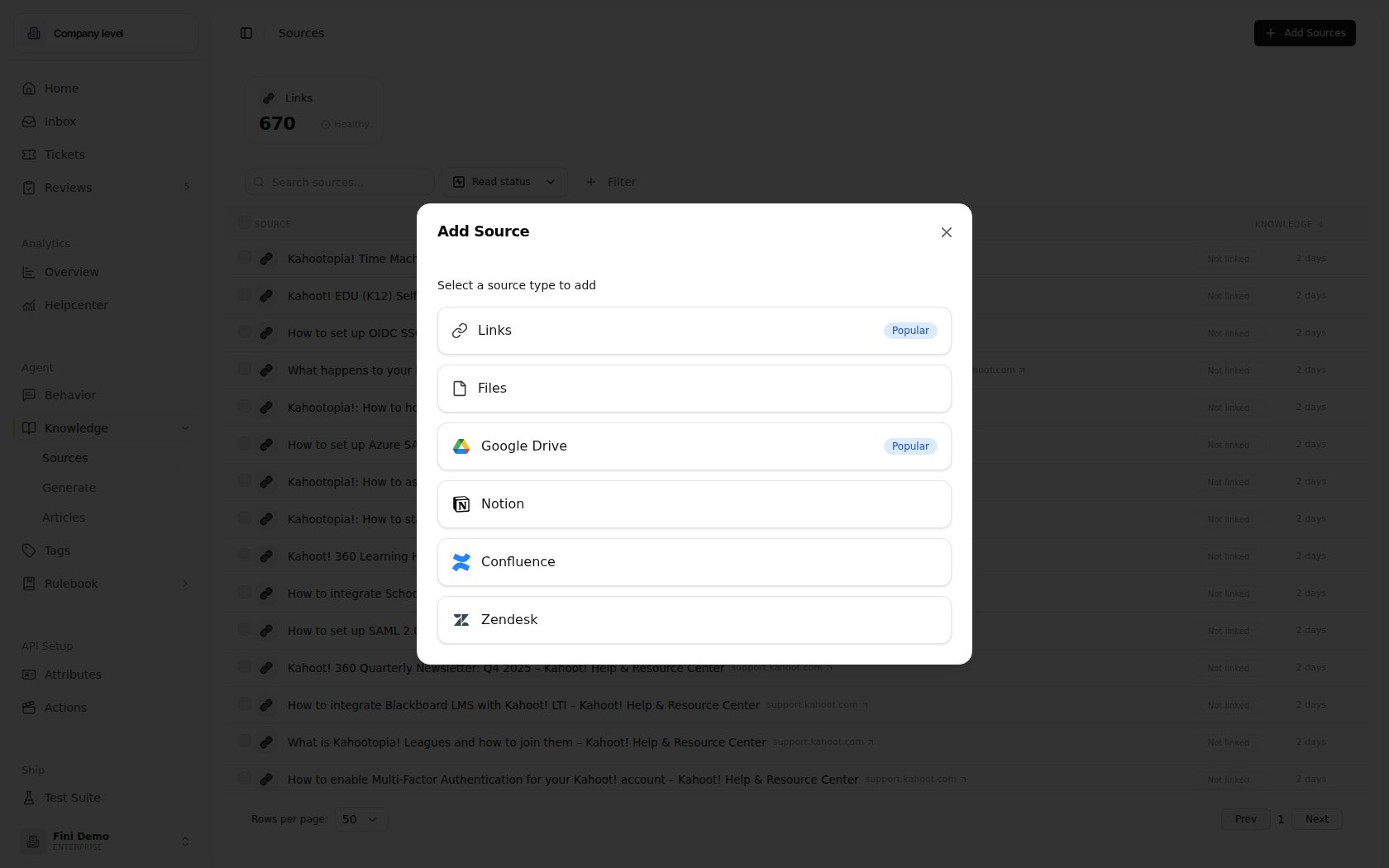
- Links
- Files
- Connected stores
The most common source type. The Add link sources dialog has three modes: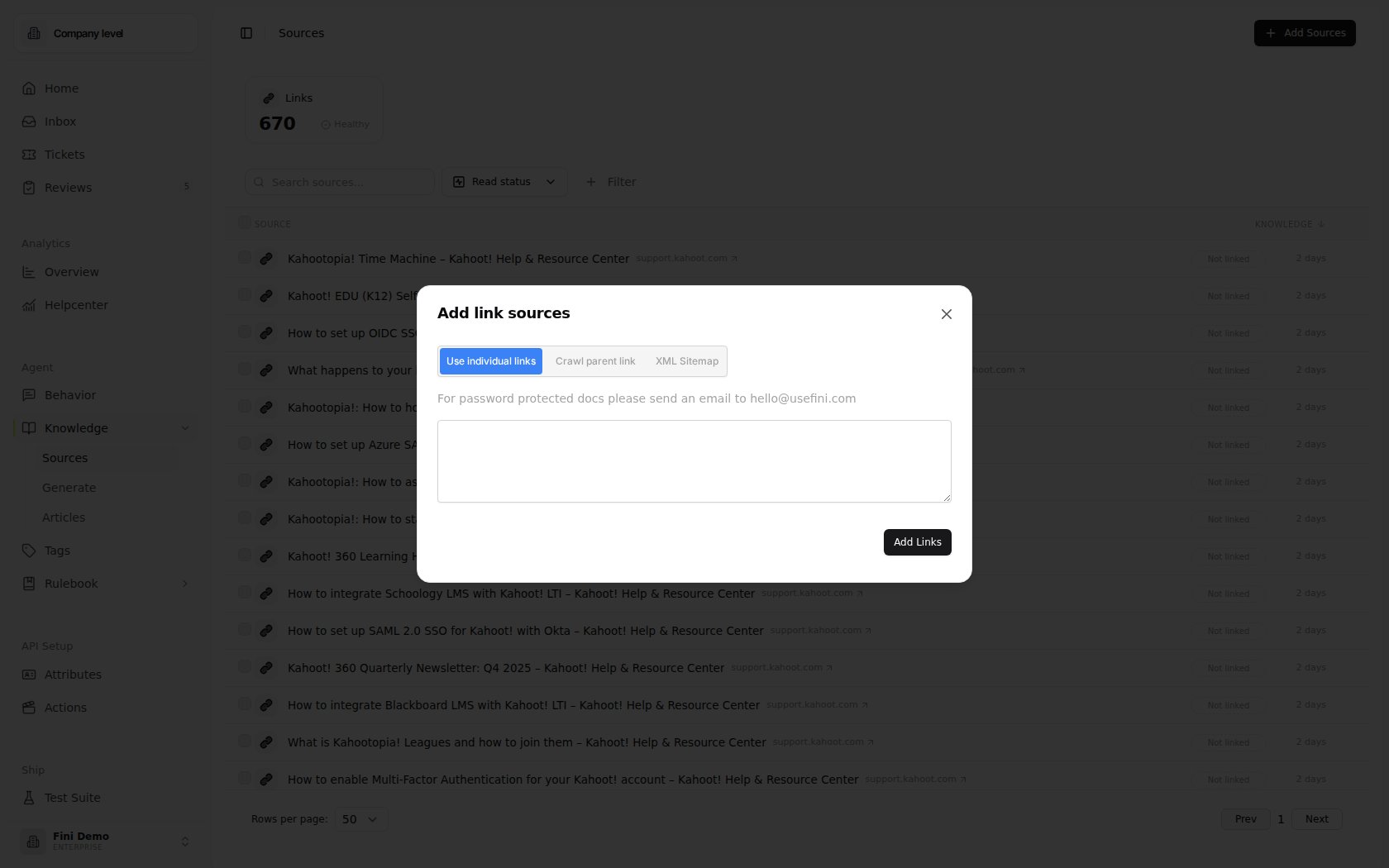
- Use individual links: paste one or more URLs (newline-separated). Each becomes its own document. Use when you want exact control over what’s added.
- Crawl parent link: paste a single root URL. Fini fetches the page, finds every linked page on the same domain, and lists them for you to review and trim before submitting. Use when you want everything under a marketing or help-center domain in one shot.
- XML Sitemap: paste a
sitemap.xmlURL. Fini parses the sitemap and lists every URL inside. Use when the site exposes a sitemap (which is how most modern docs and blog sites publish their canonical URL list).
The Sources page
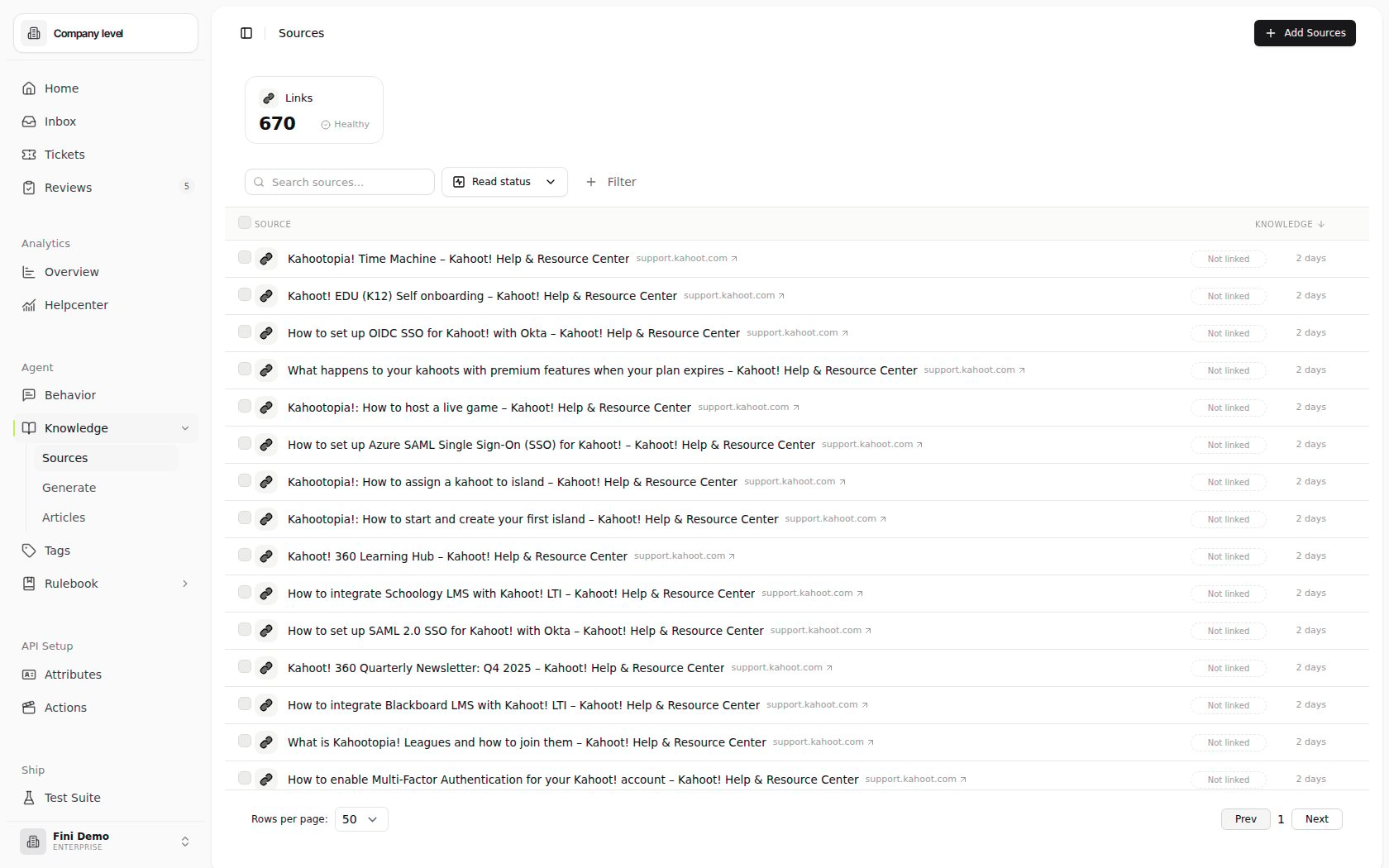
The page shows every document Fini has indexed across all your sources. Summary cards at the top group the workspace by source type and health, for example Links with a count and Healthy status. Click a card to focus the table on that source type. Under the cards, the toolbar gives you:- Search sources… — search by source title.
- Read status — filter by whether a source has already been added into knowledge.
- + Filter — add extra filters when you need to narrow the table further.
Refreshing sources
Sources are stable until you change them. They don’t auto-refresh on a schedule by default; if your help-center articles change, Fini keeps working from the version you last ingested unless you explicitly refresh. To refresh:- One source: select the row, open its actions menu, pick Refresh.
- Several sources: select multiple rows from the table and bulk-refresh.
- All sources of a type: select the type tab, select-all, refresh.
Training preferences
Two language settings control how Fini processes your sources:- Language: pick the language of your knowledge base. Defaults to English. If your sources are in multiple languages, switch to Auto-detect (Fini detects each document’s language) or pick a specific non-English language.
- English-only mode: a faster path for English-only knowledge bases that skips per-document language detection.
How sources reach an agent
Sources live at the workspace level: anything you upload or connect is in the workspace’s raw input pool. From there, the path to a customer-facing answer goes through two more layers:1
Ingest into Sources
Connect the URL, upload the file, or pick from the OAuth integration. The content is indexed at the workspace level.
2
Promote to Articles
Either author an Article manually that references the source, or use Magic Articles to generate articles from your Sources in bulk. Either way, the content enters the same review / publish workflow before it becomes canonical knowledge.
3
Approve in Review
A teammate vets the draft in Review Queue — checking for conflicts with existing articles, gaps, and quality issues. On approval, the article goes live.
4
Attach to an agent
In Articles, use the top-right selector to attach the article (or its parent folder) to the agents that should retrieve from it. Different agents can have different knowledge bases drawn from the same Sources pool.
Adding or removing a source from your workspace doesn’t automatically push changes to any agent. The downstream Articles are what agents retrieve from. Refresh the source, let the proposed updates flow into Review, approve them, and the changes propagate.
Why an answer is wrong or stale
Sources are upstream of every agent answer, so when something’s off, the cause is usually one of these. In rough order of likelihood:The source has been updated since you last ingested it
The source has been updated since you last ingested it
Refresh the source. If you’ve never refreshed since the original ingest and the underlying page has changed, the Article derived from it is still working off the old version.
The source never made it into an Article
The source never made it into an Article
Sources alone don’t answer customers — Articles do. Open Magic Articles and generate from this source, or author an Article manually. Check Review for any drafts sitting unapproved.
The relevant Article isn't attached to the responding agent
The relevant Article isn't attached to the responding agent
Open Articles, switch the top-right selector to the responding agent, and confirm the parent folder is attached.
The source format stripped the answer at parse time
The source format stripped the answer at parse time
Click Preview content on the source’s row to see exactly what Fini extracted. Some PDFs (especially scanned image-only PDFs) lose text during ingest — if the relevant passage isn’t in the preview, it never reached Articles. Fix by re-exporting the file as a text-extractable PDF or uploading it as Markdown.
The crawl missed the page that has the answer
The crawl missed the page that has the answer
Re-run the crawl in Sitemap mode if the site exposes one, or paste the specific URL in Individual mode.
A conflict between sources wasn't resolved in Review
A conflict between sources wasn't resolved in Review
Two sources disagreed, and Review surfaced the conflict but it was approved without resolution. Open the article in Articles, fix the canonical answer, and resubmit through Review.
The agent's language doesn't match the source's language
The agent's language doesn't match the source's language
Check the language preference on both the source and the agent. An agent set to English-only won’t reliably retrieve from non-English-derived Articles.