fini_escalated_human_agent, and Gorgias can also receive Fini widget escalations; Fini’s app is listed on the Gorgias App Store.
Connect Fini to Gorgias so your AI agent can read incoming tickets, draft replies, and respond on the email and chat channels you configure. Configuration lives entirely on the Fini side once Gorgias is authorized: agent routing, reply timing, tag sync, and reply-behavior rules are all set from the Gorgias deploy page.
At a glance
Before you connect
You’ll need:- A Gorgias account with permission to install third-party apps. Typically a Gorgias admin.
- Your Gorgias subdomain. For example, if your Gorgias URL is
https://acme.gorgias.com, your subdomain isacme. - A sender email address Fini should use as the From address when posting replies.
- At least one agent already created in Fini. If you haven’t created one yet, do that first from Agent home.
What Fini does with your Gorgias
The OAuth scopes Fini requests are managed in Gorgias’s app configuration. Gorgias shows the full permission list on the consent screen during authorization. The full list of side effects performed during and after authorization:- Read admin user identity so Fini knows which Gorgias account it’s acting as.
- Read tickets and messages so the agent can understand context and compose replies.
- Post replies on tickets as the authorized user, using the sender email you configured.
- Read and create tags: Fini creates and uses Gorgias tags to mark conversation state:
fini_escalated_human_agent,fini_resolved, andfini_waiting_for_customer. Fini also createsFini Other CategoryandFini Skip Webhook. If tags with these names already exist, Fini reuses them. - Create a webhook on your Gorgias account that notifies Fini when new messages arrive on tickets.
- Register internal mappings between Fini’s conversation-status tags and the matching Gorgias tags, so status sync and escalation flows track correctly.
Connect Gorgias
When you first open the Gorgias deploy page, the Connection Details panel asks for your subdomain and sender email.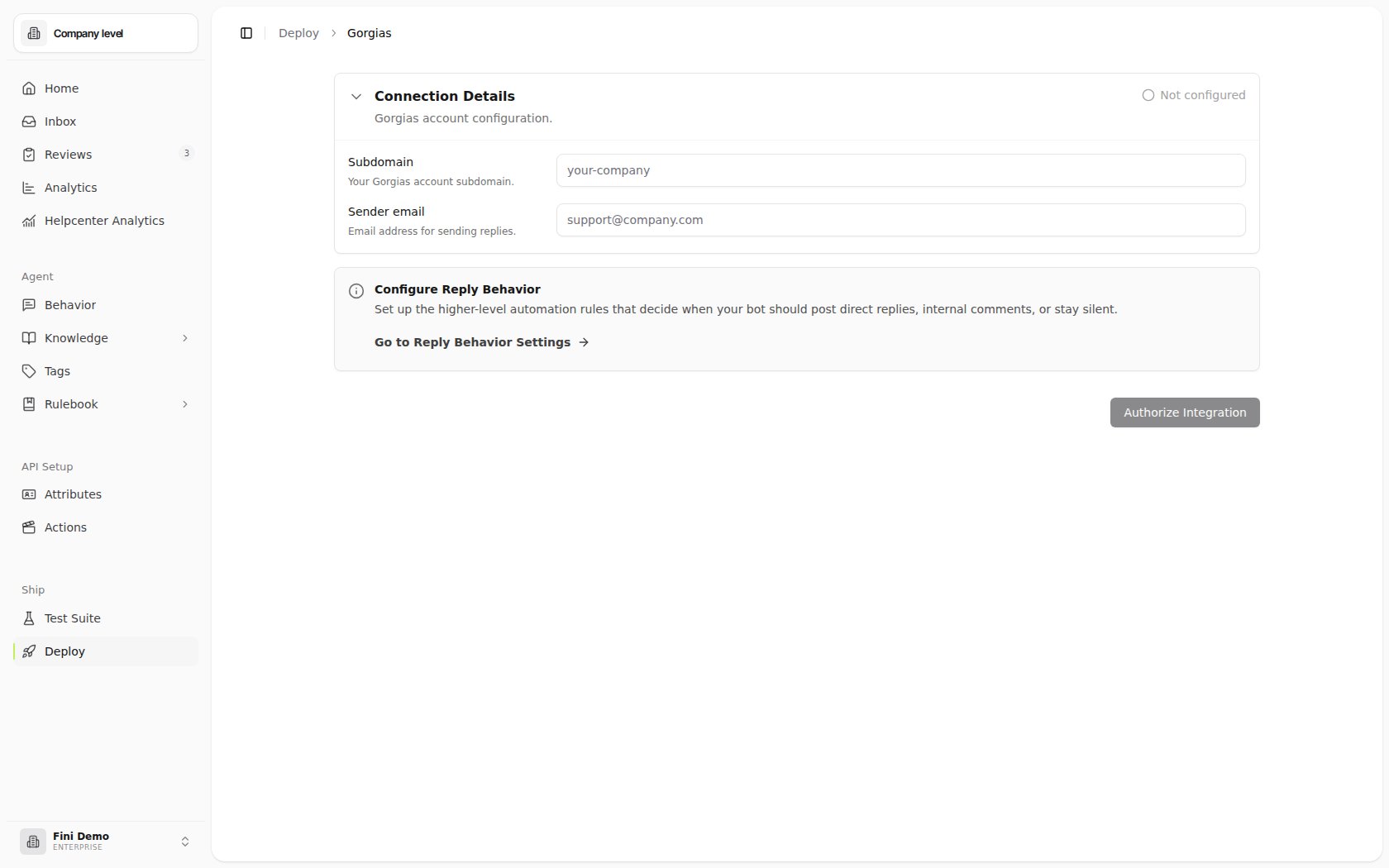
1
Enter your Gorgias subdomain
Type the subdomain portion of your Gorgias URL (e.g.,
acme for acme.gorgias.com) into the Subdomain field.2
Enter your sender email address
The email Fini should use as the From address on replies (e.g.,
[email protected]). This stays editable after authorization, so you can change it later.3
Click Authorize Integration
A Gorgias login window opens. Sign in with your Gorgias admin account and approve the requested permissions.
4
Return to Fini
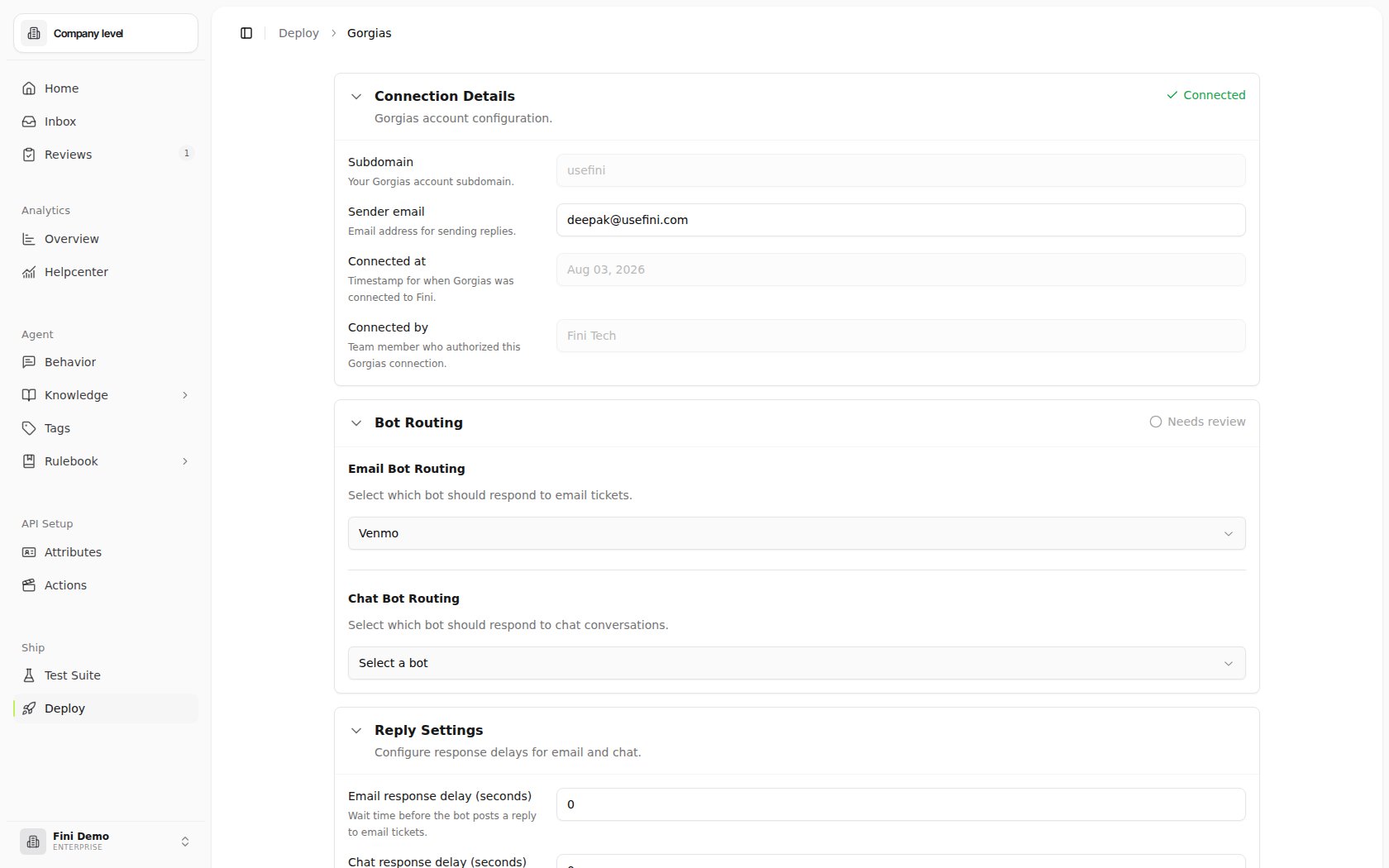
Once Gorgias redirects you back, the page expands to show your connection metadata, the Agent Routing, Reply Settings, and Tag Sync sections.
Configure your deployment
After connecting, four sections appear on the Gorgias deploy page. Each is independent. You can configure them in any order.Connection Details
Read-only metadata about the integration once authorized:- Subdomain: locked after authorization. To swap to a different Gorgias account, disconnect first (see Troubleshooting) and re-authorize.
- Sender email: stays editable. Update it any time the email Fini sends from needs to change.
- Connected at: the timestamp of the most recent successful authorization.
- Connected by: the team member whose Gorgias account authorized the integration.
Agent Routing
Gorgias routing is one agent per channel. Pick one Fini agent to handle all email tickets and one for all chat conversations. There’s no per-brand or per-inbox split.- Email Agent Routing: pick the Fini agent that should respond to email tickets.
- Chat Agent Routing: pick the Fini agent that should respond to chat conversations.
Reply Settings
Controls how long Fini waits before posting a reply.- Email response delay (seconds): wait time before the agent posts on email tickets.
- Chat response delay (seconds): wait time before the agent posts on chat conversations.
0 makes the agent reply as soon as it has an answer. Higher values can make the agent feel less robotic, or give human agents a chance to take over first.
Fini tags → Gorgias tags
A tag-mapping section. Zendesk and HubSpot have similar mappings. When Fini’s classifier applies an output tag to a conversation, the mapped Gorgias tag gets applied to the corresponding ticket in Gorgias automatically. The intended pattern is many Fini tags map to a single Gorgias tag. Fini classifies conversations with finer-grained output tags than the broader categories Gorgias workflows usually trigger off, so multiple Fini tags often route to the same Gorgias tag. Example:- Fini tags
refund_request,cancellation_request, andbilling_disputeall map to Gorgias tagbilling-issues. - Fini tags
shipping_delayandwrong_item_receivedboth map to Gorgias tagfulfillment.
- Click Add tag mapping (or Add your first tag mapping if none exist).
- Pick a Fini tag from the dropdown. Only Fini’s output tags appear here; configure those first under Tags.
- Pick the Gorgias tag (or tags) that should be applied when the Fini tag fires.
- Click Add Mapping, then Save Tag Mappings at the bottom of the section.
Configure reply behavior
Reply Behavior is the higher-level rule layer that decides when the agent should post a direct reply, leave an internal comment, or stay silent. Click Go to Reply Behavior Settings on the Gorgias page to configure these rules. They apply across all channels, not just Gorgias.Widget escalation
After Gorgias is connected, it can also be used as a widget escalation destination through Business Rules. Fini creates a Gorgias ticket with the connected integration credentials, includes the widget conversation context, and records the returned ticket metadata on the Fini conversation. The Gorgias widget-escalation template uses the sender email, Gorgias subdomain, authorized admin identity, and access token from the connected integration. Those credentials are available to the runtime but hidden from the template field picker.Skip a specific ticket
You can opt a ticket out of Fini processing without disabling the integration: tag the ticket withFini Skip Webhook in Gorgias. Fini checks for this tag on every incoming event and skips reply processing when it’s present.
The Fini Skip Webhook tag and Fini’s conversation-status tags are created automatically during authorization (if they don’t already exist).
Verify it’s working
- From your connected Gorgias account, send a test ticket to one of the channels you’ve mapped (email or chat).
- Wait the configured response delay, then check the ticket in Gorgias. The mapped Fini agent should have posted a reply.
- (If you configured tag sync) Confirm the expected Gorgias tags were applied.
- If nothing appears, see Troubleshooting.
Common questions
Do I need to replace Gorgias or migrate my tickets?
Do I need to replace Gorgias or migrate my tickets?
No. Fini connects to your Gorgias account and replies on tickets where they already are, from the sender email you set. See Fini on top of your helpdesk.
What does Fini do when it can't answer?
What does Fini do when it can't answer?
It escalates the ticket to your team and applies the
fini_escalated_human_agent tag, which your Gorgias rules and views can act on. You can review what the agent tried in Inbox.Will Fini reply while a human agent is working the conversation?
Will Fini reply while a human agent is working the conversation?
Not if you tell it not to. Add a No Reply rule in Reply Rules with Human Agent Assigned equal to
True. A higher response delay in Reply Settings also gives your team a chance to take over first.How do I keep Fini off a ticket, or off Gorgias entirely?
How do I keep Fini off a ticket, or off Gorgias entirely?
Tag a single ticket
Fini Skip Webhook (Skip a specific ticket). To pause Fini on all Gorgias traffic, add a No Reply rule in Reply Rules with Integration Provider equal to gorgias.Troubleshooting
Authorization failed or expired. Click Authorize Integration again from the Gorgias deploy page. Make sure you’re signing in with a Gorgias admin account. The agent isn’t replying. Check, in order:- Is an agent selected for the channel the ticket came in on (email vs. chat)?
- Does the ticket have the
Fini Skip Webhooktag? If so, Fini deliberately skips it. - Is the agent enabled and trained?
- Is the response delay much higher than expected?
- Are there Reply Behavior rules that suppress replies on this channel or ticket type?
- The Fini output tag is actually firing on the conversation. Check the conversation in Inbox to see which tags Fini classified.
- The mapping is saved (the Save Tag Mappings button at the bottom of the Tag Sync section appears whenever there are unsaved changes).
- The Gorgias tag still exists. If it was deleted in Gorgias, the mapping points at a stale ID and won’t apply.