

At a glance
Before you connect
You’ll need:- A HubSpot account with permission to install third-party apps. Typically this means a Super Admin or a user with App Marketplace permissions.
- A HubSpot Inbox with at least one connected email or chat channel.
- At least one agent already created in Fini. If you haven’t created one yet, do that first from Agent home.
HubSpot routing is per channel (email vs chat) with optional per-channel-account scoping. You can deploy a single agent across all your HubSpot inboxes for a channel, or split across multiple agents by picking specific channel accounts on each. There’s no per-brand split.
What Fini does with your HubSpot
When you authorize the integration, Fini requests these OAuth scopes on your HubSpot account:oauth: standard OAuth flow.tickets: read and write HubSpot tickets so Fini can read context and post replies.conversations.read: read incoming conversation messages.conversations.write: post replies and internal comments on conversations.crm.objects.contacts.read: read contact records associated with conversations so the agent can personalize replies.crm.objects.contacts.write: associate widget-escalation tickets with matching HubSpot contacts when configured.- Optional
conversations.custom_channels.readandconversations.custom_channels.write: create native HubSpot Help Desk conversation threads for widget escalations when HubSpot grants custom-channel access.
- Read conversations and tickets so the agent can understand context and compose replies.
- Post replies and internal comments as the authorized user, when a mapped agent decides to respond.
- Read contact records to personalize replies based on who the conversation is with.
- Read writable ticket properties so Fini output tags can sync to selected HubSpot ticket fields.
- Read published HubSpot forms so Business Rules can offer eligible support forms for widget escalation.
- Submit mapped support forms when a Business Rule uses the HubSpot support-form handoff.
- Create native HubSpot conversation threads for widget escalations when custom-channel access is authorized and a HubSpot widget channel is configured.
- Create custom ticket properties on your HubSpot account: one used to mark tickets the agent should skip, plus conversation-status properties for
fini_escalated_human_agent,fini_resolved, andfini_waiting_for_customer. Existing properties with the same names are reused.
Connect HubSpot
When you first open the HubSpot deploy page, you’ll see an Authorize Integration button. HubSpot uses pure OAuth. There’s no portal ID or credentials to enter ahead of time.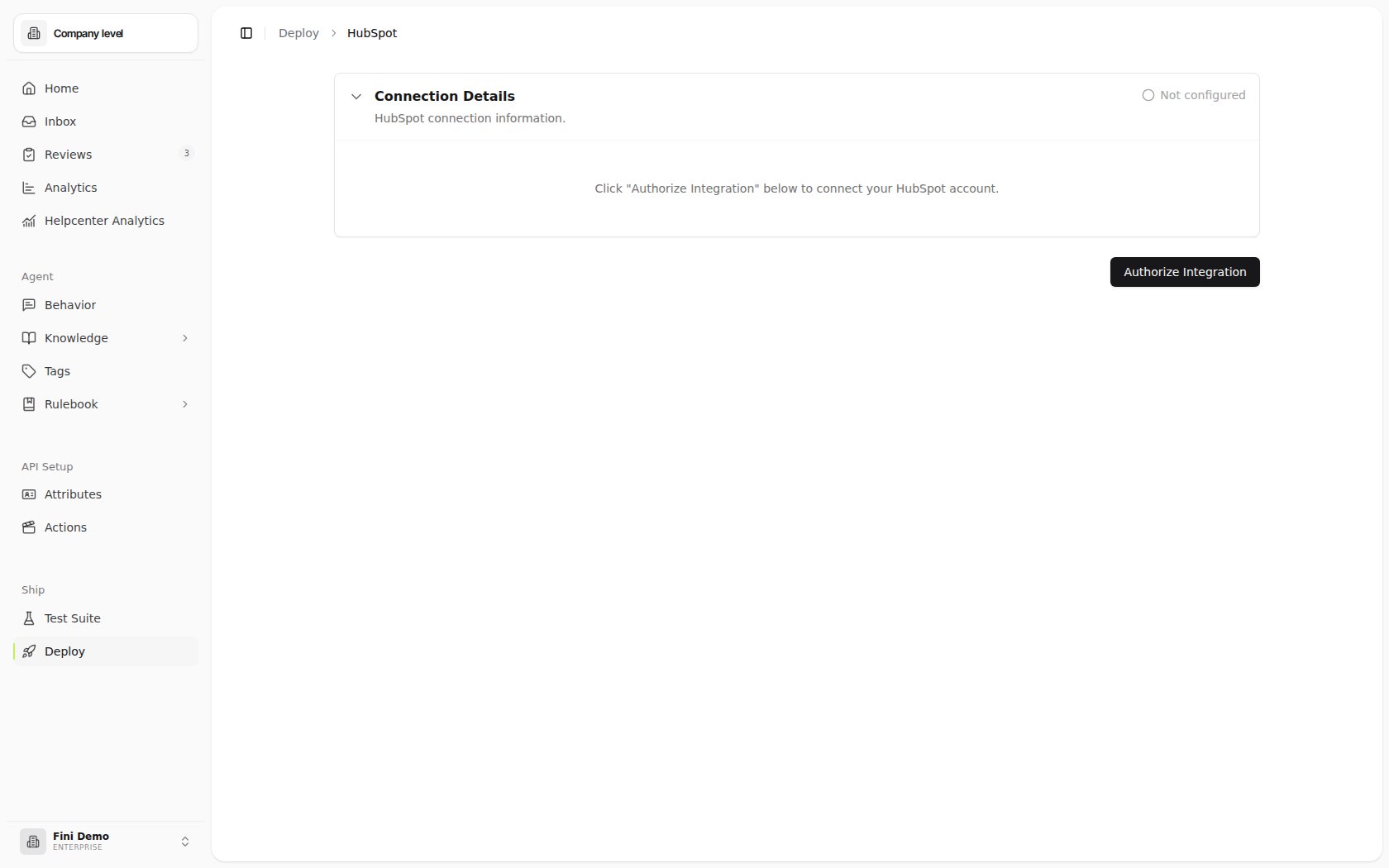
1
Click Authorize Integration
A HubSpot authorization window opens. Sign in with an account that has permission to install apps in your HubSpot portal.
2
Select the HubSpot account and approve
If your HubSpot login has access to multiple accounts (portals), pick the one you want to connect to Fini. Review and approve the permissions Fini requests.
3
Return to Fini
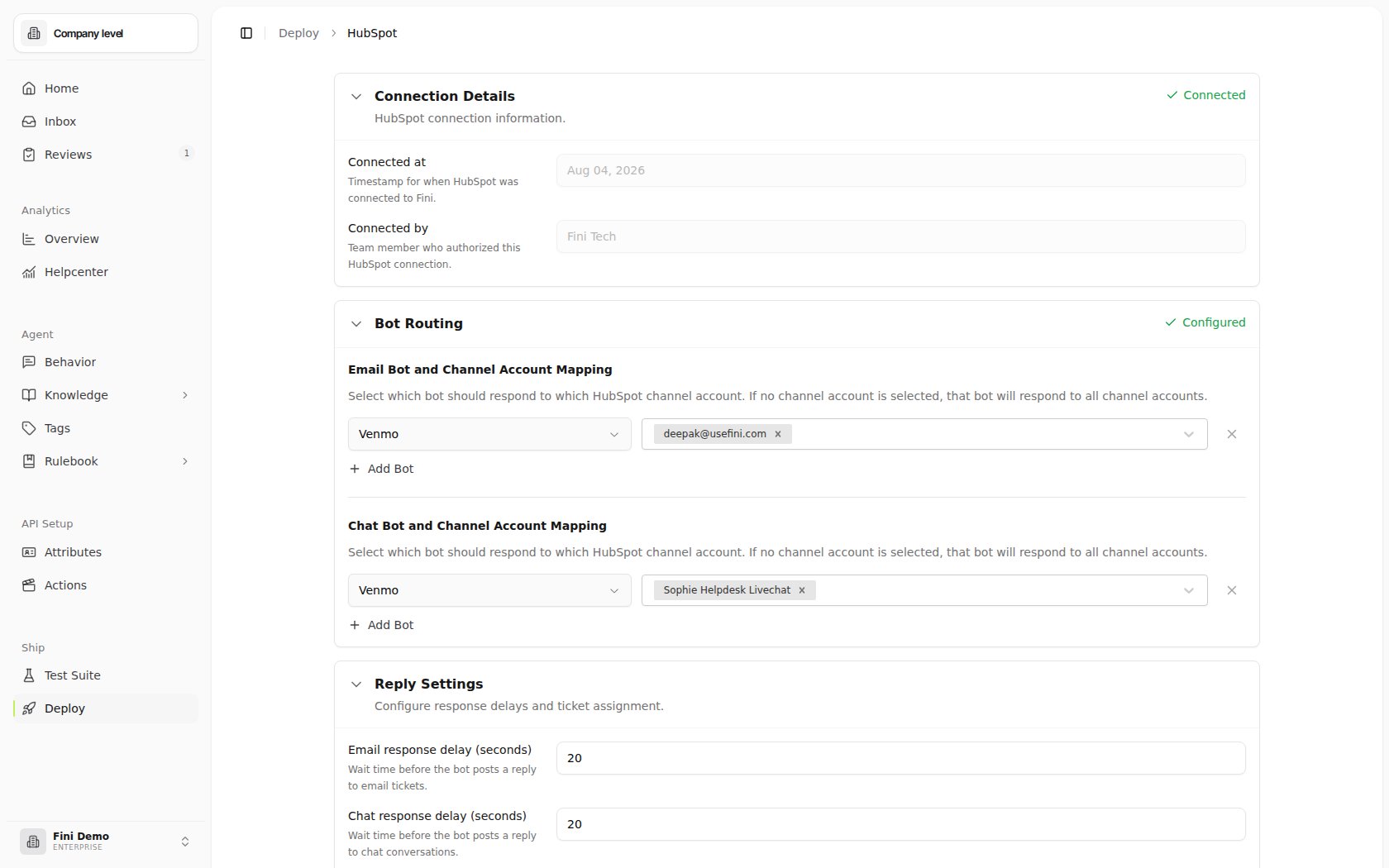
Once HubSpot redirects you back, the page expands to show the full configuration with your connection metadata.
Configure your deployment
After connecting, the HubSpot deploy page shows four configurable sections plus a link to the higher-level Reply Behavior rules. Each is independent. You can configure them in any order.Connection Details
Read-only metadata about the integration:- Connected at: the timestamp of the most recent successful authorization.
- Connected by: the team member whose HubSpot account authorized the integration.
Agent Routing
Decides which Fini agent replies on which HubSpot Channel Account, separately for email tickets and chat conversations.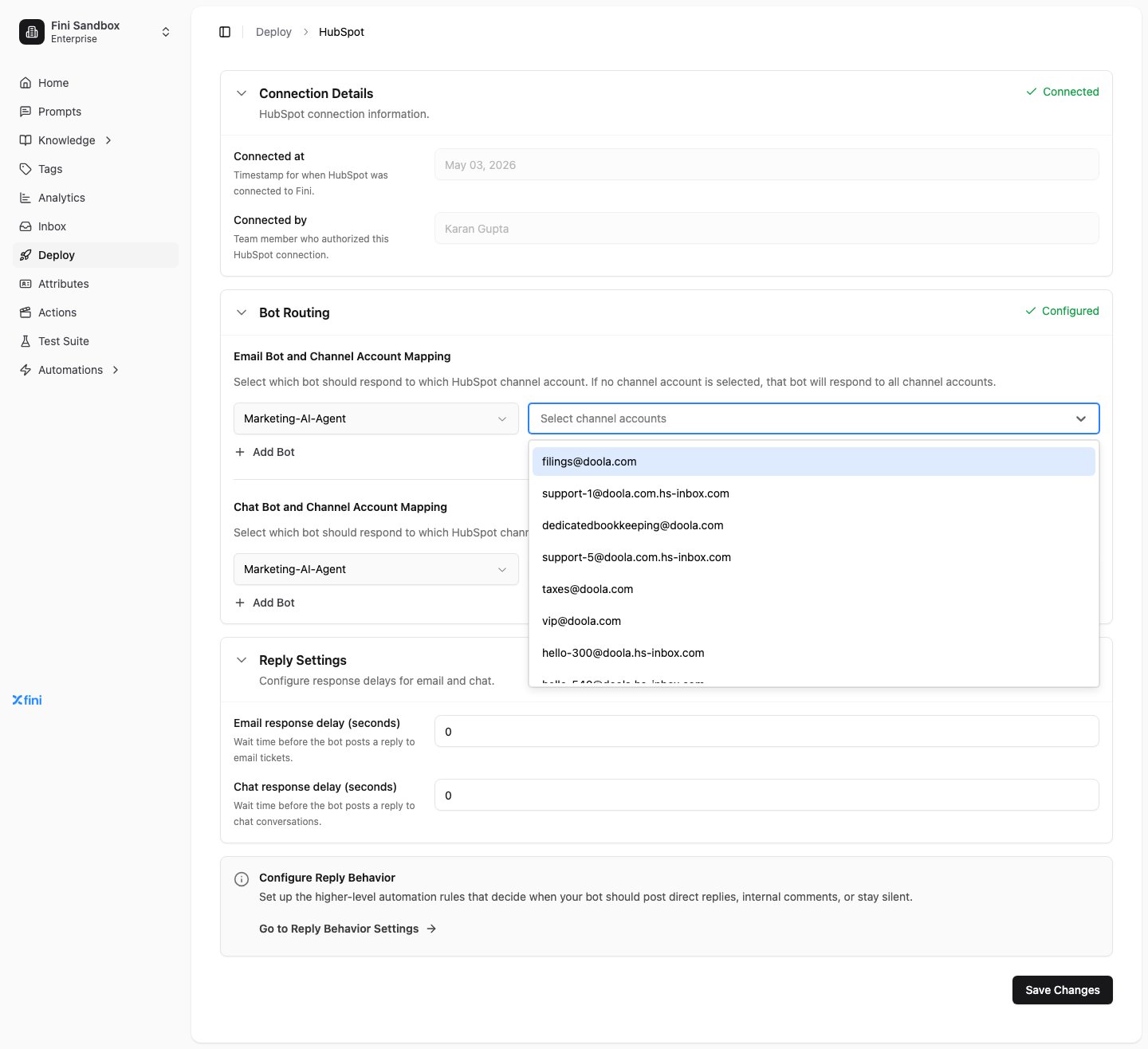
- Email Agent and Channel Account Mapping: pick the Fini agent that should respond to email tickets, and the channel accounts it should respond on. Leave the channel-account dropdown empty to make that agent the default for all email channel accounts.
- Chat Agent and Channel Account Mapping: same model for chat conversations.
Reply Settings
Controls how long Fini waits before posting a reply.- Email response delay (seconds): wait time before the agent posts on email tickets.
- Chat response delay (seconds): wait time before the agent posts on chat conversations.
0 makes the agent reply as soon as it has an answer. Higher values can make the agent feel less robotic, or give human agents a chance to take over first.
Fini tags to HubSpot ticket properties
The tag-mapping section maps Fini output tags to values on HubSpot ticket properties. When Fini classifies a conversation with a mapped output tag, the corresponding HubSpot ticket property value is written to the ticket. HubSpot mappings include both a ticket property and the value Fini should set. Fini only shows writable, visible ticket properties with supported field types, including boolean, enumeration, text, number, date, and datetime fields. Hidden, archived, calculated, unique-value, read-only, or optionless enumeration properties are excluded. Example:- Fini tag
refund_requestmaps to HubSpot property Support topic with valueRefunds. - Fini tag
cancellation_requestmaps to HubSpot property Retention risk with valuetrue. - Fini tag
vip_customermaps to HubSpot property Priority score with value100.
- Click Add tag mapping (or Add your first tag mapping if none exist).
- Pick a Fini tag from the dropdown. Only Fini output tags appear here; configure those first under Tags.
- Pick the HubSpot ticket property to write.
- Pick or enter the property value. Enumeration and boolean properties use dropdowns. Text, number, date, and datetime properties use typed inputs.
- Click Add Mapping, then Save Tag Mappings at the bottom of the section.
Configure reply behavior
Reply Behavior is the higher-level rule layer that decides when the agent should post a direct reply, leave an internal comment, or stay silent. Click Go to Reply Behavior Settings on the HubSpot page to configure these rules. They apply across all channels, not just HubSpot.Widget escalation
After HubSpot is connected, it can also be used as a widget escalation destination through Business Rules. Fini creates the handoff with the connected integration credentials, includes the widget conversation context, and marks the ticket with Fini’s HubSpot escalation field when that field is available. When HubSpot grants custom-channel access and the HubSpot widget channel is configured, Fini creates the handoff as a native HubSpot Help Desk conversation thread and then links the associated ticket back to the Fini escalation. If custom-channel access is unavailable, Fini falls back to creating a direct HubSpot ticket. Business Rules can also hand off by submitting a published HubSpot support form. Fini only lists forms that include Fini’s interaction ID ticket property, because that field lets HubSpot and Fini keep the form submission tied to the original widget conversation. If your Business Rule does not map a specific HubSpot pipeline stage, Fini chooses the first active open ticket stage from the default ticket pipeline. If no default pipeline is available, Fini uses the first active ticket pipeline.Verify it’s working
- From your connected HubSpot Inbox, send a test conversation on the channel you’ve mapped.
- Wait the configured response delay, then check the conversation. The mapped Fini agent should have posted a reply.
- (If you configured tag sync) Confirm the expected HubSpot ticket property value was applied.
- If nothing appears, see Troubleshooting.
Common questions
Do I need to replace HubSpot or migrate my tickets?
Do I need to replace HubSpot or migrate my tickets?
No. Fini connects to your HubSpot account over OAuth and works on conversations in your existing Inbox. Your team keeps working in HubSpot. See Fini on top of your helpdesk.
What does Fini do when it can't answer?
What does Fini do when it can't answer?
It escalates the conversation to your human team and sets Fini’s escalation status property on the ticket, so your team can find it in HubSpot.
Can I limit Fini to certain inboxes or channels?
Can I limit Fini to certain inboxes or channels?
Yes. Under Email Agent and Channel Account Mapping and Chat Agent and Channel Account Mapping, pick the channel accounts each agent answers. Leave it empty to cover all of them.
Will Fini reply while a human agent is working the conversation?
Will Fini reply while a human agent is working the conversation?
Not if you tell it not to. Add a No Reply rule in Reply Rules with Human Agent Assigned equal to
True. A higher response delay in Reply Settings also gives your team a chance to take over first.Can Fini leave internal comments instead of replying?
Can Fini leave internal comments instead of replying?
Yes. An Internal Comment rule in Reply Rules makes the agent post a comment only your team sees. To pause Fini on all HubSpot traffic, add a No Reply rule with Integration Provider equal to
hubspot.Troubleshooting
Authorization failed or expired. Click Authorize Integration again from the HubSpot deploy page. Make sure you’re signing in with a HubSpot account that has app-installation permission for the portal. The agent isn’t replying. Check, in order:- Is an agent selected for the channel the conversation came in on (email vs. chat)?
- Is the agent enabled and trained?
- Is the response delay much higher than expected?
- Are there Reply Behavior rules that suppress replies on this channel or conversation type?
- The Fini output tag is actually firing on the conversation. Check the conversation in Inbox to see which tags Fini classified.
- The mapping is saved. The Save Tag Mappings button at the bottom of the tag sync section appears whenever there are unsaved changes.
- The selected HubSpot ticket property is still writable and visible in HubSpot. If the property was archived, hidden, made read-only, or changed to an unsupported field type, Fini will stop offering it for new mappings.
- The mapped value still exists for enumeration properties. If an option was hidden or removed in HubSpot, update the mapping to a visible option.