

Before you connect
You’ll need:- A Slack workspace with permission to install third-party apps. Typically a Workspace Admin or someone with permission to install Slack apps.
- At least one agent already created in Fini. If you haven’t created one yet, do that first from Agent home.
What Fini does with your Slack
Slack manages the OAuth scopes Fini requests on Fini’s side (not in your workspace’s app config). Slack shows the full permission list on the consent screen during authorization. The operations Fini performs:- Identify your workspace so Fini knows which Slack team it’s acting on.
- List channels so the deploy page can show every channel available for mapping. Channel listing is paginated and rate-limited by Slack, so initial load may take a few seconds on workspaces with many channels.
- Read incoming messages in the channels you map so the agent can understand context and compose replies.
- Post replies as a Slack agent in the mapped channels. Slack tracks Fini’s agent identity automatically; there’s no separate “agent name” you set on the Fini side.
Connect Slack
Authorize Slack from the deploy area in Fini. The OAuth flow opens a Slack window where you sign in and pick the workspace to install Fini into.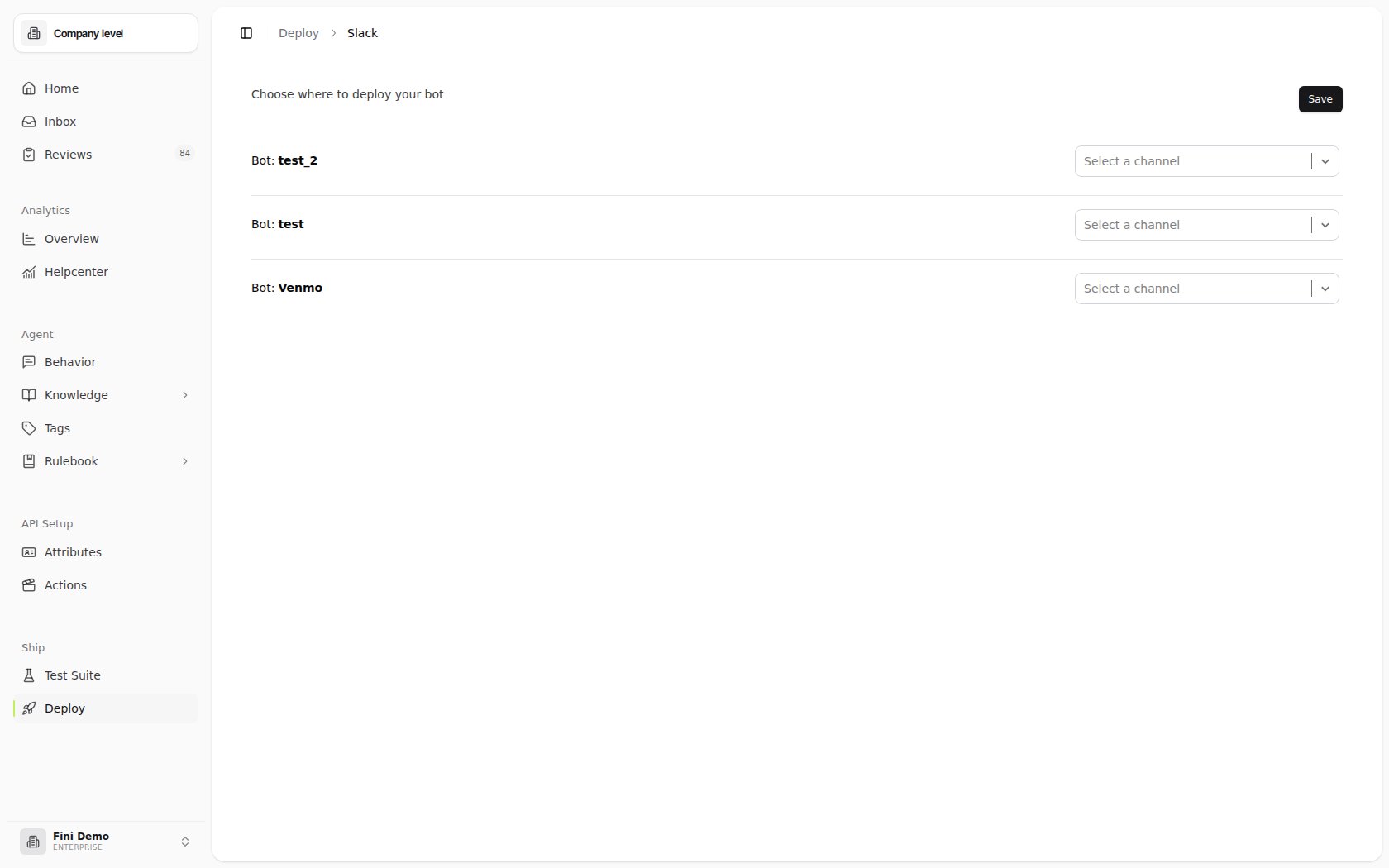
1
Click Authorize Integration from the Slack deploy entry
A Slack authorization window opens. Sign in with an account that has permission to install apps in the workspace you want to connect.
2
Pick the workspace and approve
Slack shows the permission list Fini requests. Review and approve.
3
Return to Fini
Once Slack redirects you back, the Slack deploy page loads the full channel list from your workspace. Larger workspaces may show a “We got X channels but looks like there are more!” loader while pagination completes.
If you visit the Slack deploy page before Slack is connected, Fini redirects you back to the Deploy index. Authorize Slack first; the channel-mapping UI only renders for connected workspaces.
Map agents to channels
Slack’s deploy page is a single channel-mapping panel. For each Slack channel, you pick which Fini agent should respond to messages there. The model:- One agent can map to many channels. Use the same Fini agent to handle support across multiple Slack channels.
- Each channel maps to one agent at most. Once a channel is assigned to an agent, it’s hidden from the other agents’ channel options. To reassign, remove the channel from its current agent first.
- Channels without a mapping get no Fini reply. Map every channel you want the agent active in; leave the rest unmapped.
- Find the agent you want to map (or add a new agent row, if the UI lets you).
- Search or scroll the channel list and select the channels that agent should respond to.
- Click Save Changes when you’re done.
Reply Behavior
Slack replies happen as direct replies by default. Unlike Zendesk, Intercom, HubSpot, and others, Slack doesn’t have a separate Reply Settings section on the deploy page; there’s no per-channel response-delay or internal-note option to configure here. The higher-level Reply Behavior rules still apply: those decide whether the agent should reply directly, escalate, or stay silent based on conversation context. Configure them once globally; they apply across Slack and every other integration.Verify it’s working
- Invite the Fini Slack agent to a channel you’ve mapped (private channels only).
- Post a test message that the agent should be able to answer.
- Confirm the agent replies in-thread or as a top-level message, depending on your Reply Behavior configuration.
- If nothing appears, see Troubleshooting.
Troubleshooting
Authorization failed or expired. Re-authorize from the Slack deploy entry in Fini. Make sure you’re signing in with an account that has app-installation permission for the workspace. The agent isn’t replying in a channel. Check, in order:- Is the channel mapped to an agent in the channel-mapping UI?
- Is it a private channel? If so, has the Fini Slack agent been invited (
/invite @Fini)? - Is the agent enabled and trained?
- Are there Reply Behavior rules that suppress replies on this conversation type?